



The Tuya Smart Home App Troubleshooting process can seem overwhelming, especially when your smart devices suddenly stop responding, fail to connect to Wi-Fi, or disappear from the app. Since Tuya powers millions of smart home products worldwide, even a small configuration issue can lead to unexpected errors, automation failures, or device offline messages.
Table Of Content
- Resolving Common Tuya Smart Home Problems
- Check Your Device’s Power and Physical State
- Verify the Correct Wi-Fi Network and Password
- Restart the Problematic Tuya Device
- Confirm the Device is in Pairing Mode
- Tuya Device Malfunction Solutions
- Re-add the Device to the Tuya Smart App
- Question-Answer
- My Tuya smart device is offline and won’t reconnect. What should I check first?
- I keep getting a “Device Add Failed” error. How can I fix this?
- Why does my Tuya device work in the app but not with voice commands through Alexa or Google Home?
- The schedule or automation I set in the Tuya Smart app isn’t triggering. What’s wrong?
- After a router or internet outage, all my Tuya devices are unresponsive. Do I need to set each one up again?
- My Tuya smart device shows as “Offline” in the app, but it’s plugged in. What are the first things I should check?
- I’ve tried everything—reset the device, reinstalled the app—but my Tuya smart plug still won’t connect during setup. The app fails to find it. What now?
- Ensure your phone and device use the 2.4 GHz Wi‑Fi band; disable Smart Connect and confirm correct SSID and password.
- Power‑cycle and factory reset problematic devices and hubs by unplugging 30 seconds and holding reset button 5–10 seconds.
- Manually check and install firmware updates for devices and hubs to resolve connectivity and stability issues.
- Verify device is in pairing mode, disable cellular data during setup, and keep phone near device to complete pairing.
In this guide, we’ll walk you through the most common problems and proven solutions to help you quickly restore control over your smart home. From fixing connection errors and app crashes to resolving pairing issues and synchronization problems, this Tuya Smart Home App Troubleshooting tutorial is designed to save you time, reduce frustration, and keep your smart home running smoothly.

Begin by verifying the most fundamental element: your network. Many smart plugs, like the popular Gosund models, and LED strips from AliExpress require a 2.4 GHz wi-fi band. Your phone might be connected to a 5 GHz network, creating an immediate connectivity barrier. Access your router’s settings to ensure the 2.4 GHz band is active and broadcasting a distinct SSID for the initial pairing process.
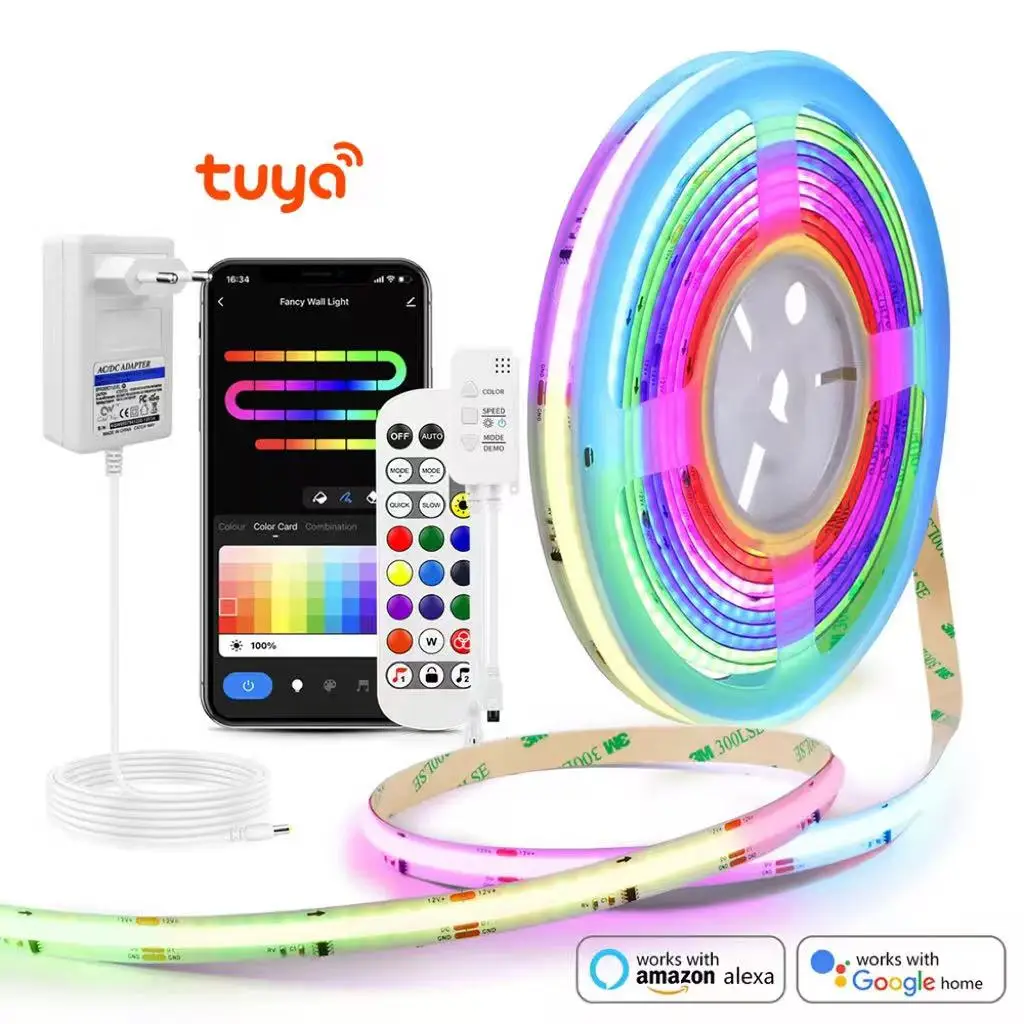
A corrupted configuration is a frequent culprit. Power cycle your device by unplugging it for 30 seconds. Then, initiate a full factory reset, typically by holding a button for 5-10 seconds until an LED flashes rapidly. This clears all previous settings. Next, force-close and reopen your smart home app, and ensure both your phone’s Bluetooth and location services are enabled, as they are often essential for the discovery protocol.
Outdated firmware can cause persistent instability. After re-adding your device to the app, immediately navigate to the device settings menu to check for and install any available updates. This is crucial for newer product versions, such as the MoesGo smart switches, which often receive patches to improve network handshake protocols and overall reliability.
Resolving Common Tuya Smart Home Problems
Immediately power-cycle your primary hub, like the MOES Tuya ZigBee Wired Gateway Smart Hub, by unplugging it for 30 seconds to clear transient glitches.

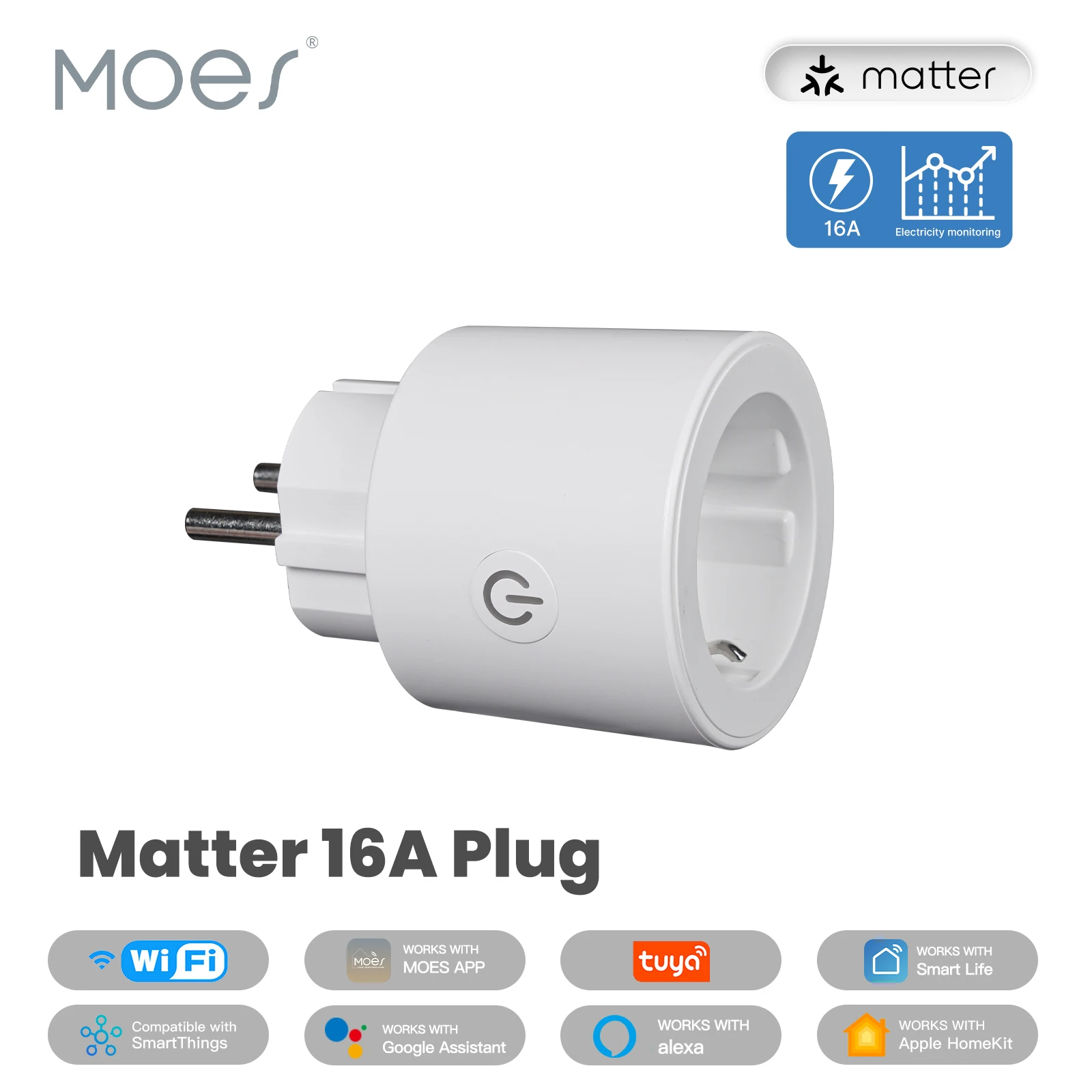
Verify the device’s compatibility with your network’s frequency; many plugs, such as the Moe’s Store Smart Plug, only operate on 2.4GHz Wi-Fi. Disable the “Smart Connect” feature on your router that bands 2.4GHz and 5GHz networks under a single SSID, as this disrupts the pairing process.
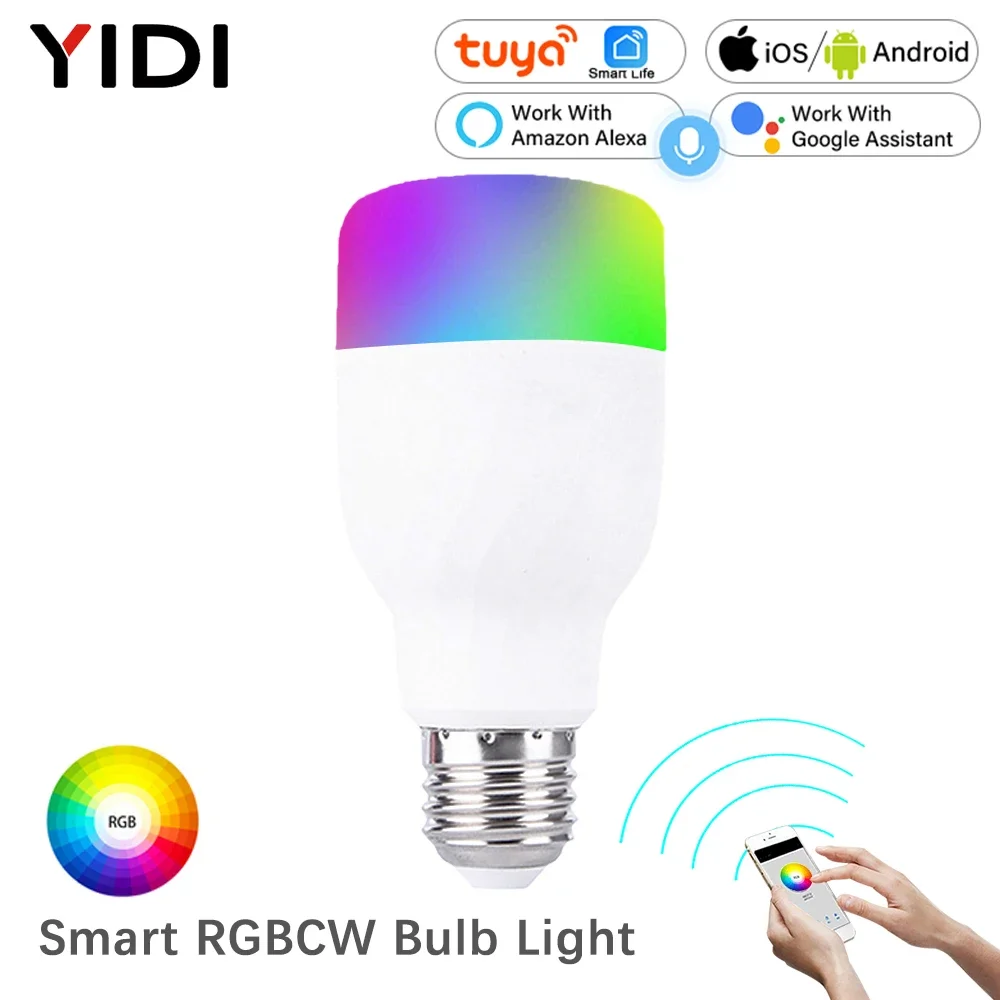
Outdated firmware is a primary culprit for erratic behavior. Navigate to the “Device Info” section within the application and manually check for updates, especially after introducing a new product like a Bulb Intelligent RGBW LED Lamp to your ecosystem.
For persistent communication failures between a device and its hub, re-establish the link by performing a dedicated re-pairing routine within the app’s hub management console, not just a general device reset.
| Symptom | Immediate Action | Advanced Check |
|---|---|---|
| Device offline in app | Restart router and hub. | Confirm no IP address conflict in router settings. |
| Failed inclusion (pairing) | Ensure phone is on 2.4GHz Wi-Fi during setup. | Temporarily disable router firewall and VPN. |
| Delayed automations | Check hub’s internet connection status. | Reduce network congestion by limiting connected devices. |
| Partial response (e.g., light on, but no color change) | Update the specific device’s firmware. | Factory reset the device and reconfigure its settings from scratch. |
A full factory reset, often triggered by holding a button for 5-10 seconds until an LED flashes rapidly, remains the definitive step for corrupt configuration. This erases all parameters, allowing for a clean reinstallation in the mobile application.
Strengthen wireless connectivity by relocating your router or hub away from large metal objects and dense appliances; a Wi-Fi mesh system can significantly improve signal reliability for far-flung gadgets like outdoor smart sockets.
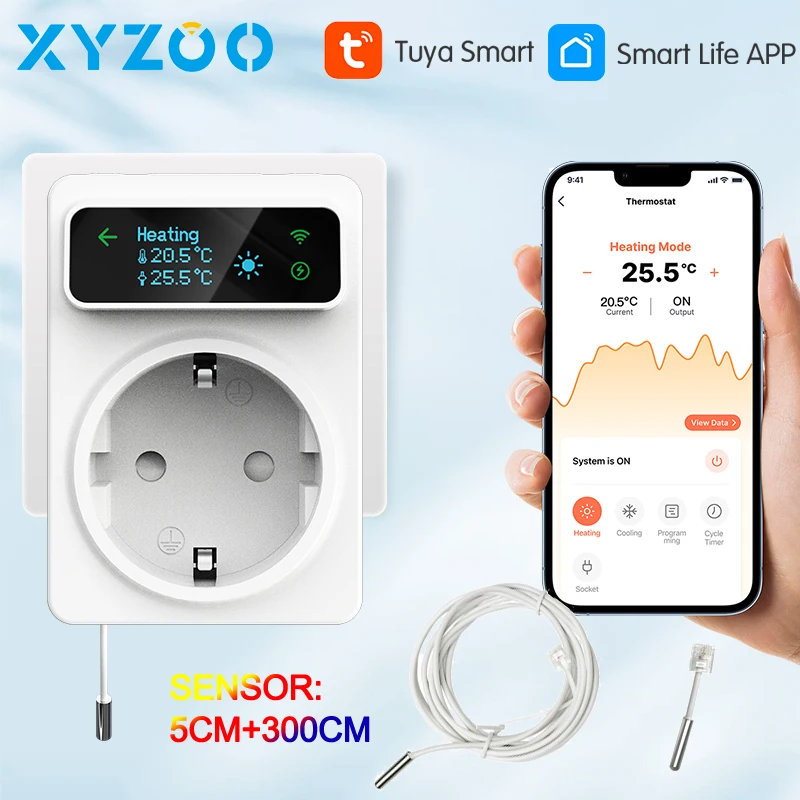
If a single accessory, such as a Smart Plug Thermostat, repeatedly drops its connection while others remain stable, investigate potential source interference from nearby microwaves or baby monitors operating on the 2.4GHz spectrum.
Check Your Device’s Power and Physical State
First, physically unplug the smart plug or light bulb for 30 seconds, then reconnect it to a known-working outlet; a non-responsive LED indicator often points to a power supply failure.
For battery-powered sensors from AliExpress, like door/window contacts, immediately verify the battery voltage is above 2.8V using a multimeter, as low power cripples wireless connectivity to the hub.
Inspect all physical connections: ensure an IP camera’s Ethernet or power cable is fully seated, and check for damaged wiring on smart curtain motors that may prevent them from receiving commands.
Confirm the device’s physical reset button has been firmly pressed for 5-10 seconds to initiate a full factory reset, which clears corrupt configuration and forces a fresh network setup via the app.
Eliminate physical obstructions; a smart hub placed inside a metal cabinet or behind a TV will have its signal blocked, disrupting the entire device network.
Power-cycle the primary hub itself by disconnecting its adapter, waiting one minute, and re-powering it; this resolves numerous phantom connectivity issues without altering your wi-fi settings.
For devices with integrated power, like a smart ceiling light, ensure the wall switch is permanently in the ‘on’ position to maintain constant power for firmware updates and remote access.
Verify the Correct Wi-Fi Network and Password
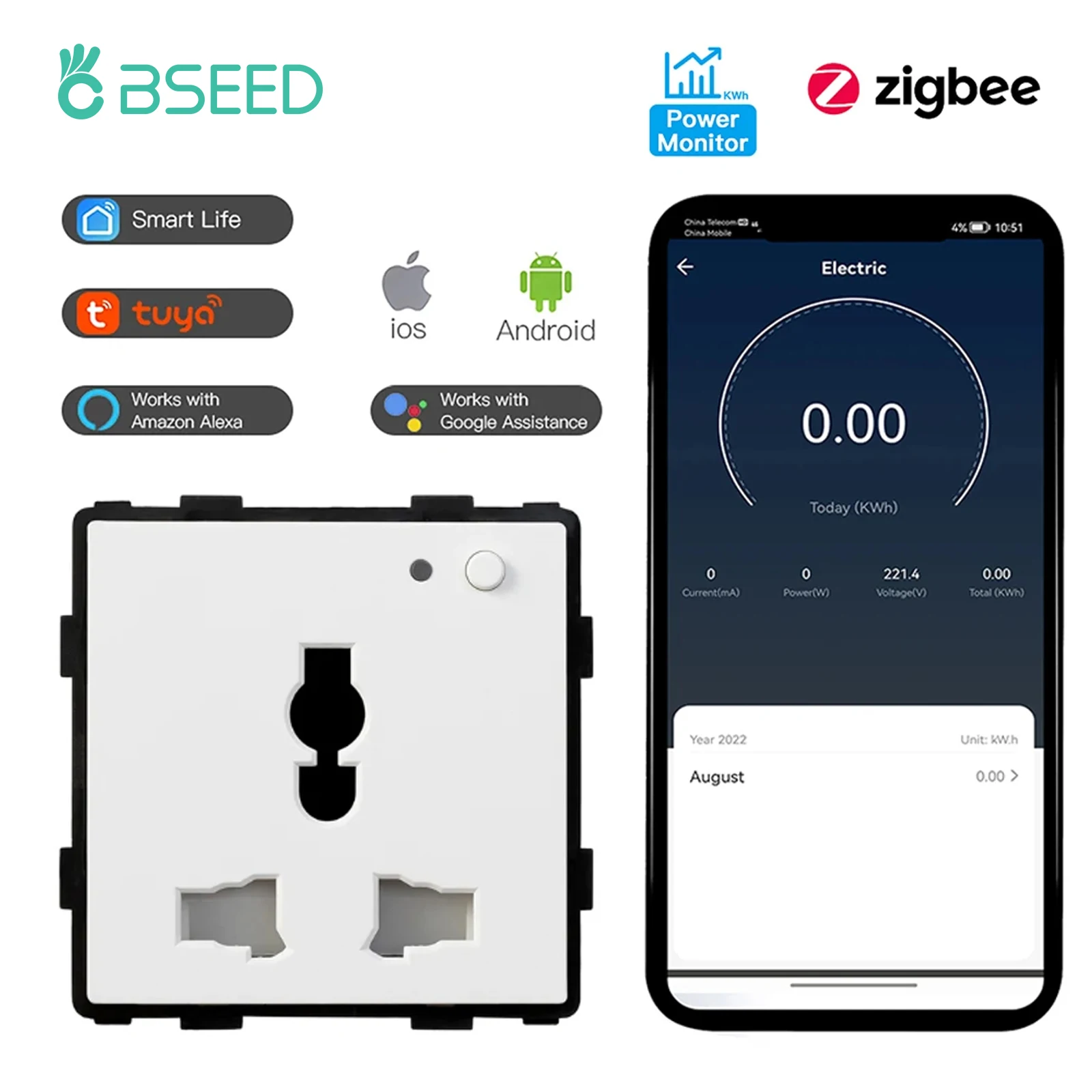
Select the precise 2.4 GHz network band during configuration; most smart devices, like the Tuya Zigbee Smart Plug or the MOES Zigbee Thermostat from AliExpress, do not support 5 GHz. Ensure your smartphone is connected to this same 2.4 GHz network, not just a similarly named one.
Follow this systematic verification process:
- Open your router’s admin page or mobile app to confirm the active network name (SSID) and password.
- In the Tuya/Smart Life app, delete the problematic device and initiate a fresh pairing sequence.
- During setup, manually enter the Wi-Fi password, ensuring correct case sensitivity and special characters. Use “Show Password” to visually confirm.
For systems using a hub, like a Tuya Gateway, verify the hub itself has stable connectivity to the router. The end device (e.g., a Moes Zigbee Switch from AliExpress) connects to the hub, not directly to your Wi-Fi.
If issues persist, perform a network reset on the device (often via a physical button) to clear previous configuration data. Finally, check for pending firmware updates for both the smart device and your router, as outdated software can disrupt network handshakes.
Restart the Problematic Tuya Device
Perform a full power cycle on the malfunctioning gadget. Unplug the smart plug or light bulb for 30 seconds, then reconnect it. This clears temporary glitches in its memory and forces a fresh network handshake.
For devices with a physical button, like the WiFi Tuya Socket Thermostat Plug, press and hold it for 5 seconds until an indicator flashes. This soft reset often resolves connectivity stalls without erasing your configuration.

If the gadget remains unresponsive in the app, initiate a factory reset. On items like the Zigbee 3.0 Smart Led Bulb from AliExpress, power it on and off three times in quick succession; the rapid flashing confirms a successful wipe, requiring a complete re-pairing setup.

After any restart, verify the device’s firmware is current within the companion application. An outdated system version can cause persistent wi-fi dropouts even after a reboot.
Confirm the Device is in Pairing Mode
Initiate the pairing process only after the gadget actively signals its readiness to connect. Most smart plugs, like the Tuya WiFi Smart Plug, or light bulbs, such as the Treatlife models, will flash rapidly or change colors. A steady light typically indicates normal operation, not a pairing state.
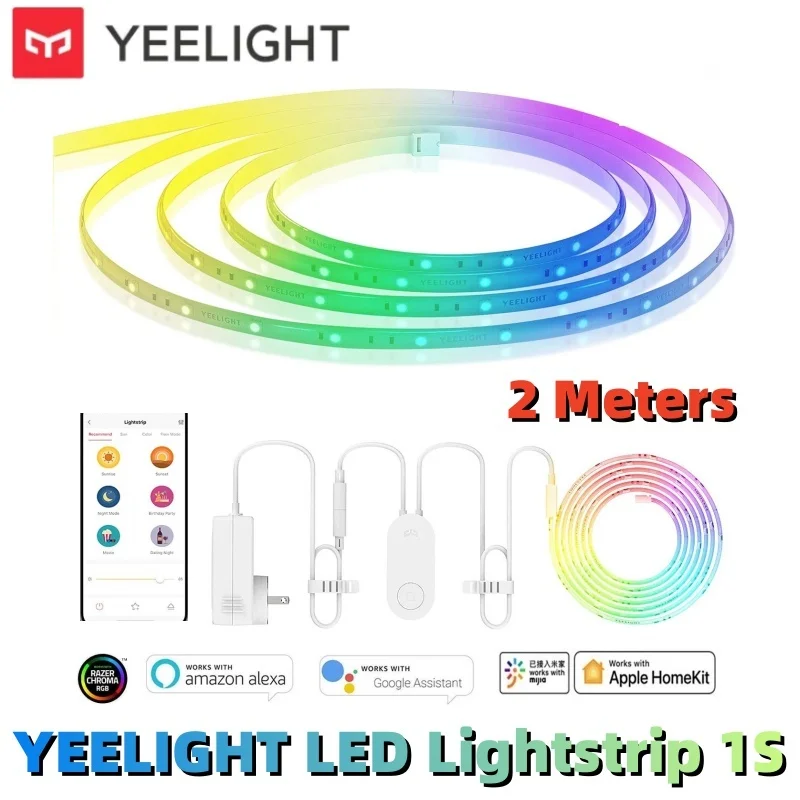
Consult the specific product manual for the precise indicator pattern; a Yeelight LED strip may pulse with a specific color, while a Moes thermostat might show a blinking Wi-Fi icon on its display. If the device remains static, force it into configuration mode. This often requires holding its physical button for 5-10 seconds until the status LED begins to blink, effectively performing a network reset without erasing all settings.

Ensure your smartphone’s Bluetooth is enabled, as many devices, including various smart sensors from AliExpress, use Bluetooth for the initial handshake before connecting to your 2.4GHz wi-fi network. Keep the gadget and your mobile device within close proximity during this stage to ensure strong short-range connectivity.
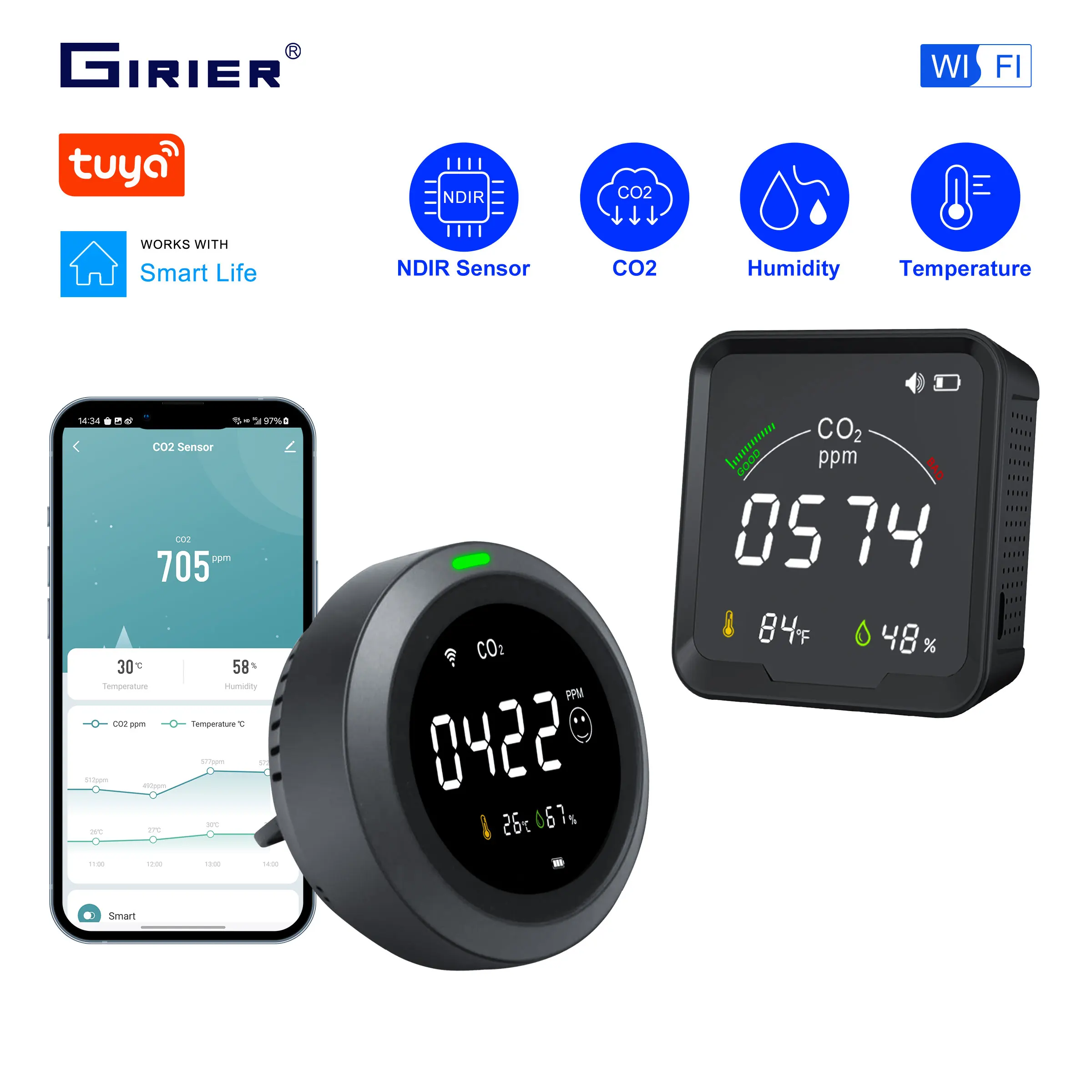
If the indicator behaves incorrectly, perform a full factory reset using the device’s dedicated pinhole button. After the reset, the device will automatically enter pairing mode upon receiving power, ready for discovery in the companion application. Proceed with adding it in the app only after you visually confirm this active, flashing pairing signal.
Tuya Device Malfunction Solutions
Force a firmware update for your gadget via its companion application. Navigate to the device settings, locate the firmware version, and manually trigger an update check; this resolves bugs affecting performance, as seen with Gosund smart plugs.
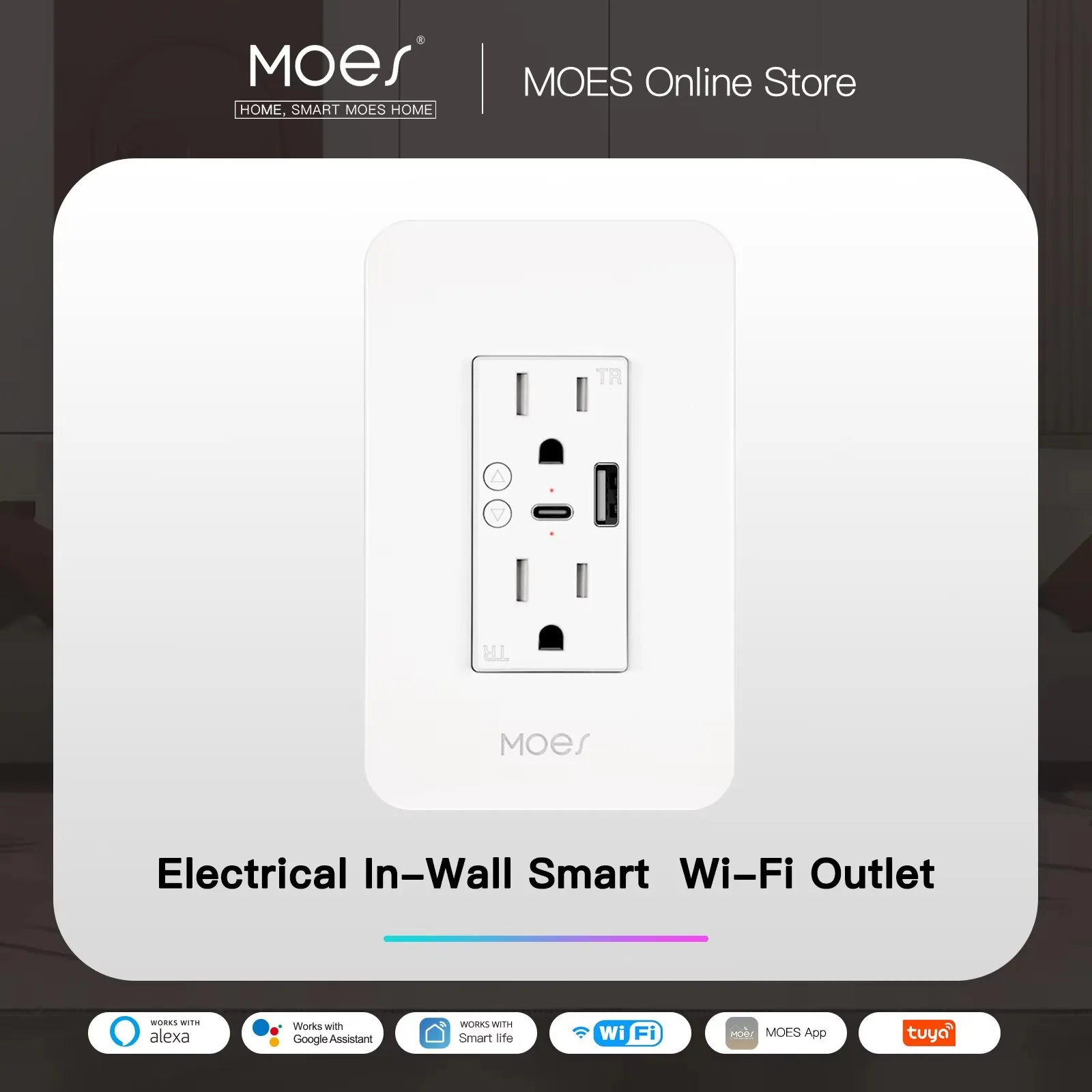
Isolate connectivity issues by temporarily moving the appliance closer to your wireless router. Signal interference from walls or appliances often disrupts communication, especially for gadgets like Zemismart LED controllers from AliExpress that lack robust antennas.
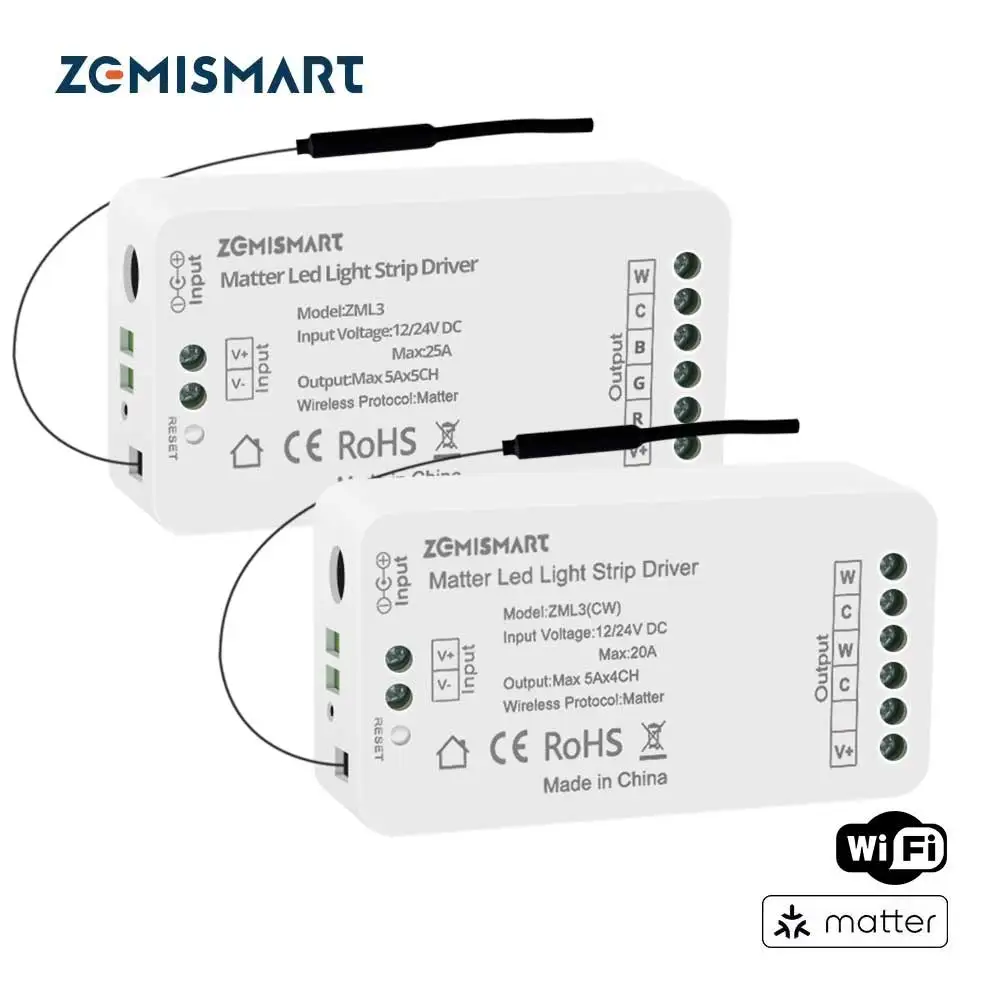
Re-establish the connection by removing the problematic unit from your application and performing a full re-pairing cycle. Delete the device profile, initiate a hard reset (often via a physical button), and add it as a new item, a reliable fix for Yeelight Smart LED Bulb W3 Color.
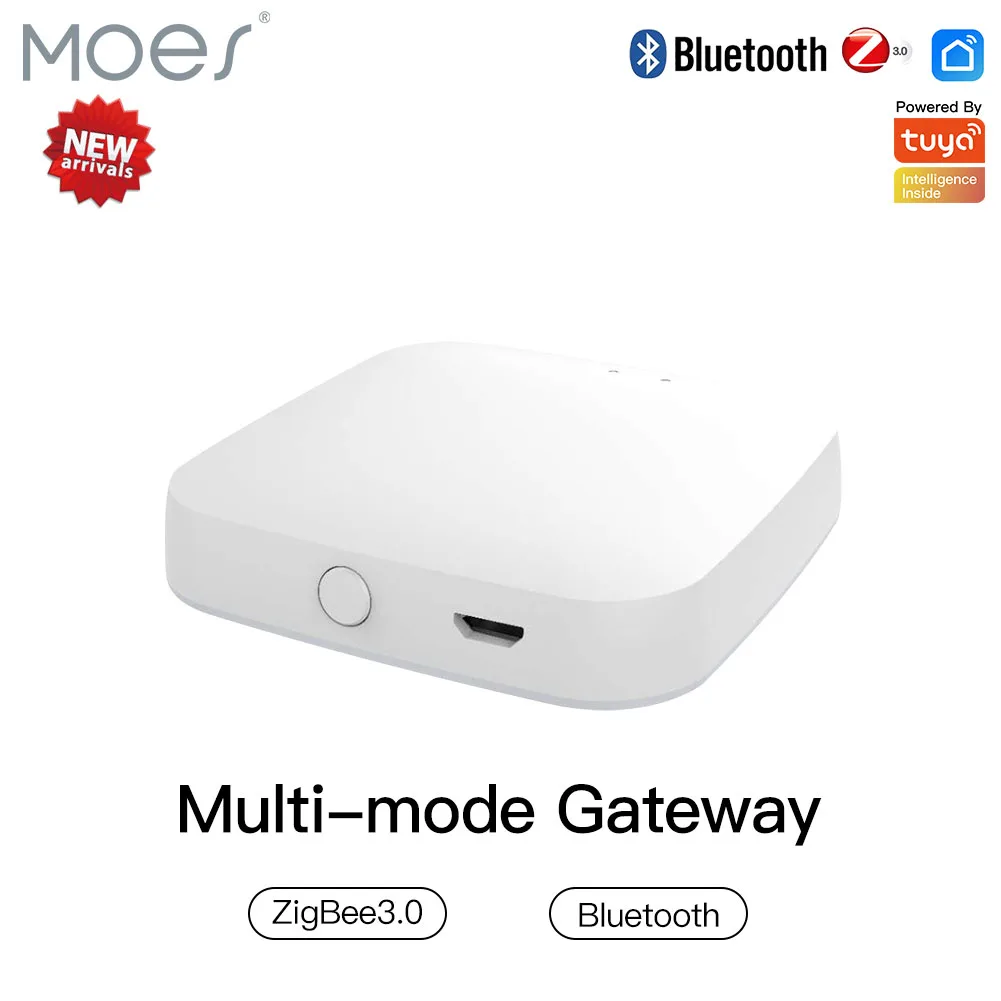
Inspect and reboot your central hub if you operate a system like a JSPTEC Tuya Multi-mode WiFi ZigBee 3.0 Bluetooth Mesh Gateway. Power cycle this bridge device, as its failure severs the link between the app and all subordinate accessories, regardless of their individual power states.
Assign a static IP address to the malfunctioning accessory within your router’s admin panel. This prevents network address conflicts that can cause intermittent dropouts for critical items like security cameras or smart locks.
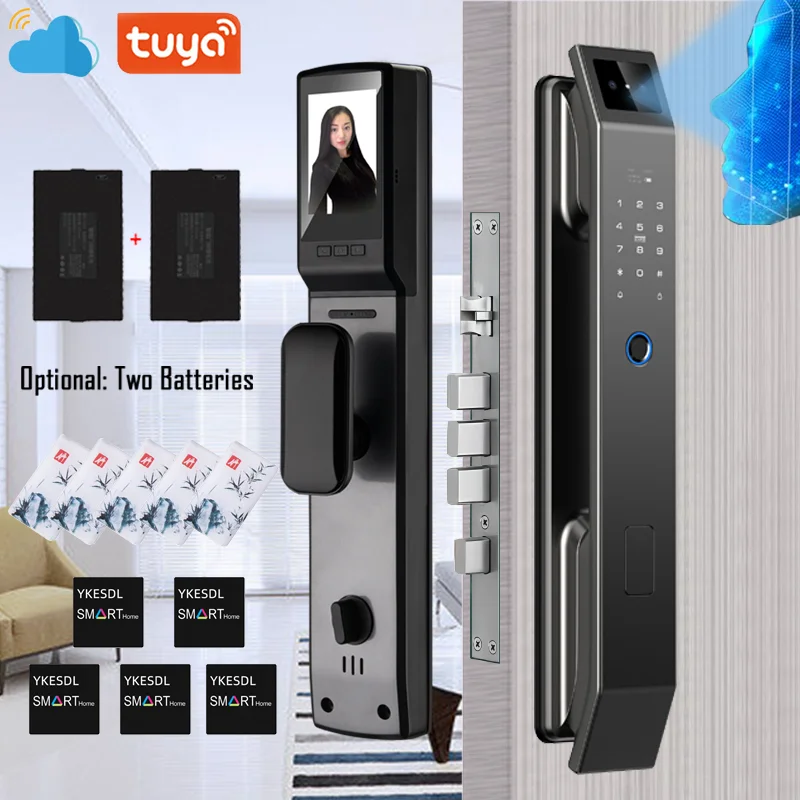
Verify your mobile device’s Bluetooth is active during the initial linking process. Many smart sensors and locks from brands like Moes require a secondary Bluetooth handshake for secure setup before joining the primary wi-fi network.
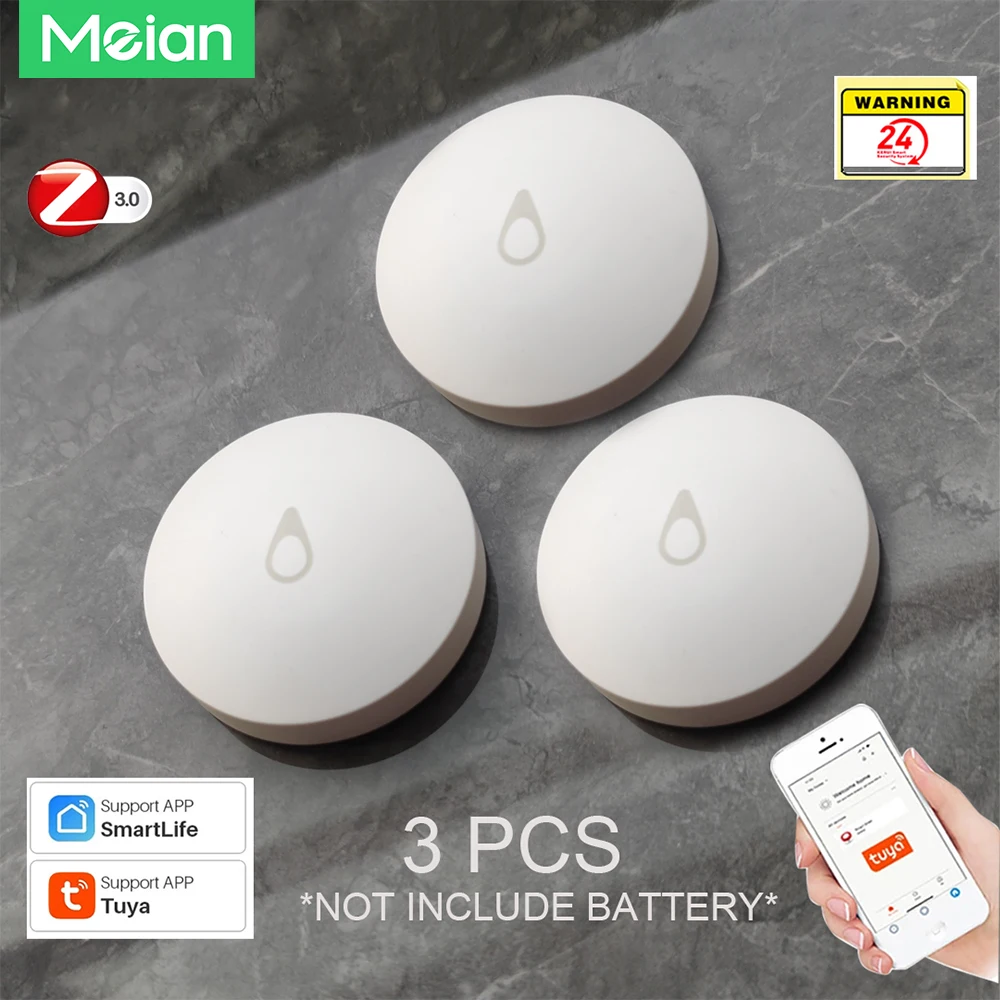
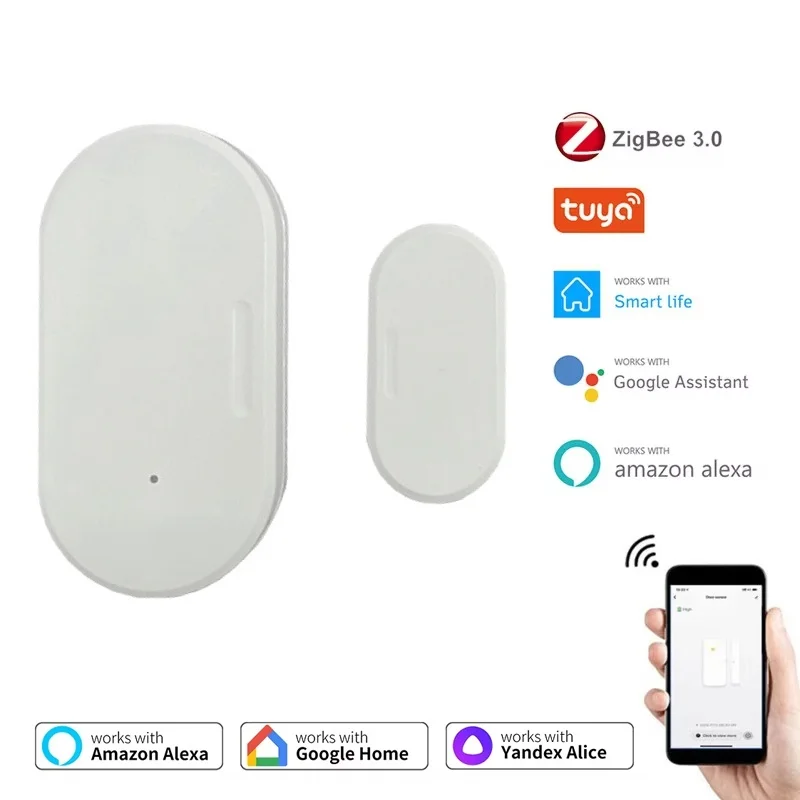
Replace the batteries in wireless peripherals, such as Tuya-based soil moisture sensors or door contacts from AliExpress. Low power can cause erratic reporting or a complete failure to transmit data to the gateway.
Re-add the Device to the Tuya Smart App
Force a fresh pairing cycle by removing the gadget from your smart home app and performing a factory reset on the hardware itself. For a Gosund smart plug, hold its button for 5-10 seconds until the LED flashes rapidly, erasing its old network configuration.
Open your smart home application, initiate the “Add Device” process, and ensure the product is in its specific pairing state–a ZOSI 360° Smart Home Security Camera from AliExpress often requires a reset pin press. Select the correct 2.4 GHz wi-fi credentials during setup, placing your phone close to the device to prevent connectivity drops.
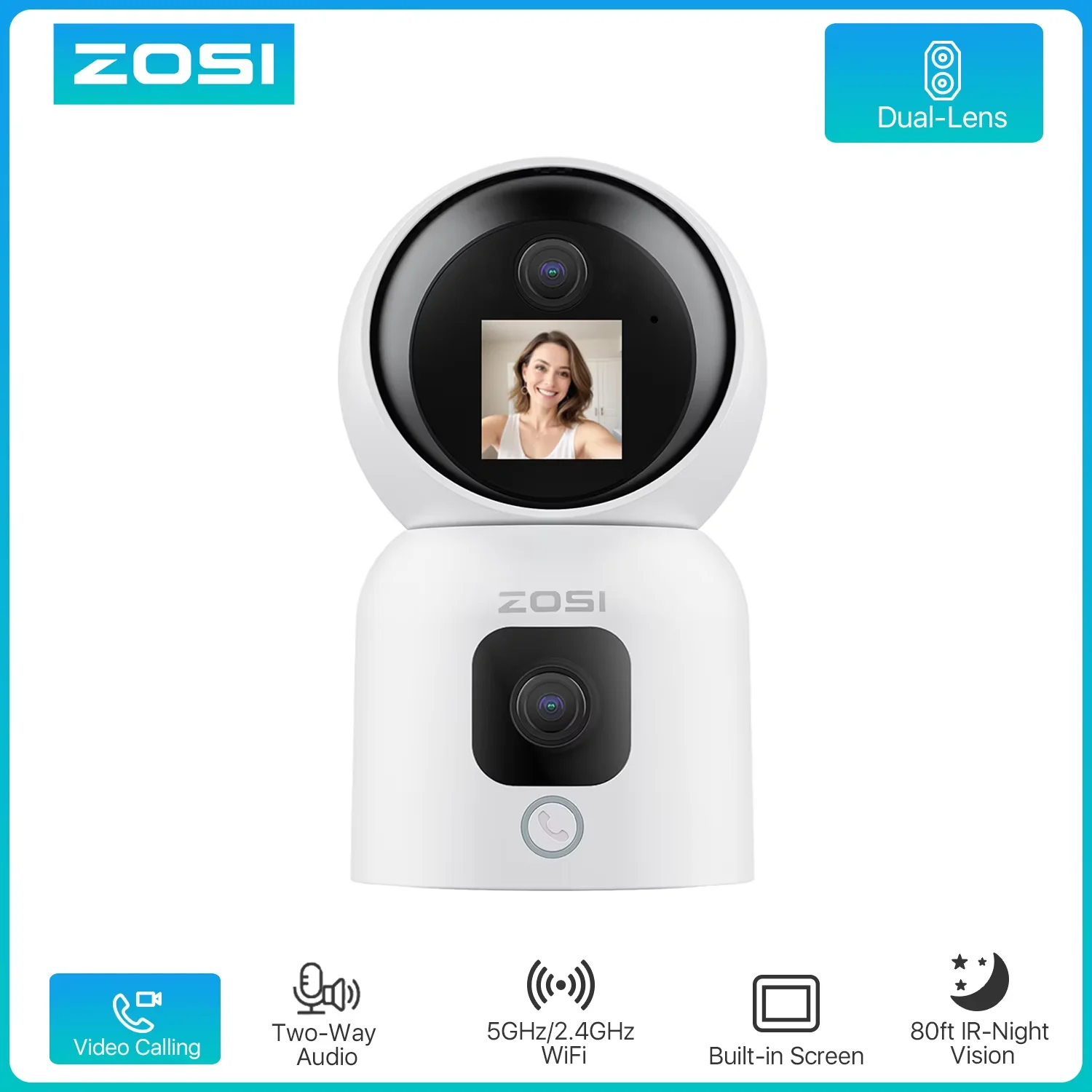
If the unit fails to appear, temporarily disable your mobile network and ensure your phone is connected to the same Wi-Fi band. For devices linked to a hub, like a MoesGo thermostat, first integrate the gateway successfully before adding sub-devices. A persistent failure may indicate outdated firmware; check the manufacturer’s channel in the app for updates after successful re-addition.
Question-Answer:
My Tuya smart device is offline and won’t reconnect. What should I check first?
The first step is to verify your Wi-Fi network. Tuya devices require a stable 2.4 GHz Wi-Fi signal; they cannot connect to 5 GHz networks. Check your router settings to ensure the 2.4 GHz band is active. Also, confirm the Wi-Fi password is correct—special characters can sometimes cause issues. Finally, restart both your router and the smart device by unplugging them for 30 seconds. This often resolves temporary connection problems.
I keep getting a “Device Add Failed” error. How can I fix this?
This error is common and usually relates to the connection process. Ensure your phone is connected to the 2.4 GHz Wi-Fi, not cellular data. During setup, if the device uses AP mode (it creates its own Wi-Fi network), you must switch your phone’s Wi-Fi to that network temporarily. The app will guide you. Also, move the device closer to the router during setup. Weak signal strength at this stage can cause the failure. If problems continue, reset the device to factory settings and try adding it again.
Why does my Tuya device work in the app but not with voice commands through Alexa or Google Home?
This points to a linkage issue between the Tuya and voice assistant platforms. First, open your Alexa or Google Home app and try disabling, then re-enabling the Tuya Smart Skill or service. You will need to re-link your accounts. This often refreshes the connection. Also, check that the device names in the Tuya app are simple and without special characters, as these names are shared with your voice assistant. Conflicting names can cause the voice assistant to not recognize the command.
The schedule or automation I set in the Tuya Smart app isn’t triggering. What’s wrong?
Failed automations often stem from the device’s connection state or app permissions. Check that the device is online in the app. If it was offline at the scheduled time, the command won’t send. For phone-based geofence automations, verify the Tuya Smart app has permanent permission to access your location, not just “while using.” Battery optimization settings on your phone can also stop the app from running in the background, preventing schedules from working. Adjust these settings to allow Tuya to run without restrictions.
After a router or internet outage, all my Tuya devices are unresponsive. Do I need to set each one up again?
No, you shouldn’t need to reconfigure every device. They are likely still connected to your Wi-Fi but having trouble communicating with the Tuya cloud. Start by power-cycling your router and modem. Once your internet is fully restored, give it a few minutes. Then, try turning one device off and on at its power source. This reboot forces it to re-establish its cloud connection. Most devices will recover on their own after the network is stable, but a manual power cycle can speed up the process for stubborn ones.
My Tuya smart device shows as “Offline” in the app, but it’s plugged in. What are the first things I should check?
The “Offline” status usually points to a connection problem, not the device itself being broken. Start with your Wi-Fi network. Tuya devices need a 2.4 GHz network band; they cannot connect to a 5 GHz band. Check your router settings to ensure the 2.4 GHz network is active and broadcasting. Next, power cycle both the device and your router. Unplug the smart device for 30 seconds, and restart your router. Once the router is fully back online, plug the device in again. This often clears up temporary glitches. Also, verify the device isn’t too far from your router, as weak signals cause dropouts. If problems continue, try removing the device from the Tuya app and going through the setup process again.
I’ve tried everything—reset the device, reinstalled the app—but my Tuya smart plug still won’t connect during setup. The app fails to find it. What now?
This persistent issue often stems from network configuration conflicts. A common fix is to temporarily disable your mobile phone’s cellular data. During setup, your phone must communicate directly with the device on the local Wi-Fi network. If cellular data is active, it can interfere. Put your phone in airplane mode, then re-enable only Wi-Fi. Next, check for router features that might block local device communication, like “AP Isolation” or “Client Isolation.” This setting, sometimes found in guest network configurations, prevents devices on the same Wi-Fi from talking to each other, which breaks the setup process. You’ll need to access your router’s admin page to disable it. Finally, try using a different smartphone to run the setup process, as operating system or security software on your primary phone can sometimes be the obstacle.