



How to Install the Tuya Smart App is the first step to building a fully functional and connected smart home. Whether you’re setting up smart plugs, lights, cameras, or sensors, the Tuya Smart app acts as your main control center for managing devices, automations, and remote access from anywhere.
Table Of Content
- Getting Started: Downloading the Tuya Smart App
- Finding the Official App on the Google Play Store
- Locating the Correct App in the Apple App Store
- Checking Your Phone’s Compatibility and OS Version
- Downloading the App Over a Stable Wi-Fi Connection
- Creating and Verifying Your Tuya Account
- Choosing Between Email and Phone Number Registration
- Question-Answer
- My phone is from China but I live in Europe. Which app region should I choose during setup?
- I can’t find the Tuya app on the Apple App Store. What’s wrong?
- The app asks for location permission. Is this required, and what does Tuya use it for?
- What’s the difference between adding a device by scanning a QR code versus selecting it from the list?
- After connecting to the device’s hotspot, the app stays on the “Connecting” screen for a long time and then fails. How do I fix this?
- My phone is from China but I live in Europe. Which app region should I choose during setup, and what’s the difference?
- I installed the app and created an account, but my smart plug won’t connect. It keeps failing near the end of the process. What can I do?
- Download the official Tuya Smart app from Google Play or the App Store, verifying the developer is Tuya Inc.
- Create and verify a Tuya account with email or phone to enable cloud management and remote access.
- Ensure your phone is on a stable 2.4GHz Wi-Fi network and has location permissions enabled for pairing.
- Put the device in pairing mode, follow in-app prompts or scan the QR code, then rename and assign it to a room.
In this guide, we’ll show you how to install the Tuya Smart App quickly and correctly on both Android and iOS, avoid common setup mistakes, and ensure a smooth connection between your devices and Wi-Fi network. By following these steps, you’ll be ready to start controlling your smart home in minutes.

Begin by grabbing the official application from your device’s digital storefront. For Android handsets, find it on Google Play; iOS users must visit the Apple App Store. Search for “Tuya Smart” or “Smart Life”–both platforms utilize the same underlying system. The download is free and completes swiftly, forming the essential control hub for your upcoming ecosystem.
Once the application is on your smartphone, launch it and create an account using an email address or phone number. This account is crucial, as it binds your device registry to the cloud, allowing remote management. Proceed to the main dashboard and tap the ‘+’ icon to initiate the pairing process. Ensure your mobile is connected to the 2.4GHz Wi-Fi band, a non-negotiable requirement for most smart plugs, light bulbs, and security cameras from brands like Gosund or LSC.


This guide now focuses on the critical configuration step. Power on your new gadget, whether it’s a smart bulb or a thermostat module from AliExpress. The app will typically prompt you to confirm a rapid blinking indicator light on the hardware. Follow the in-app instructions precisely; for many products, this involves selecting a specific Wi-Fi network and entering its password, enabling a secure local connection.

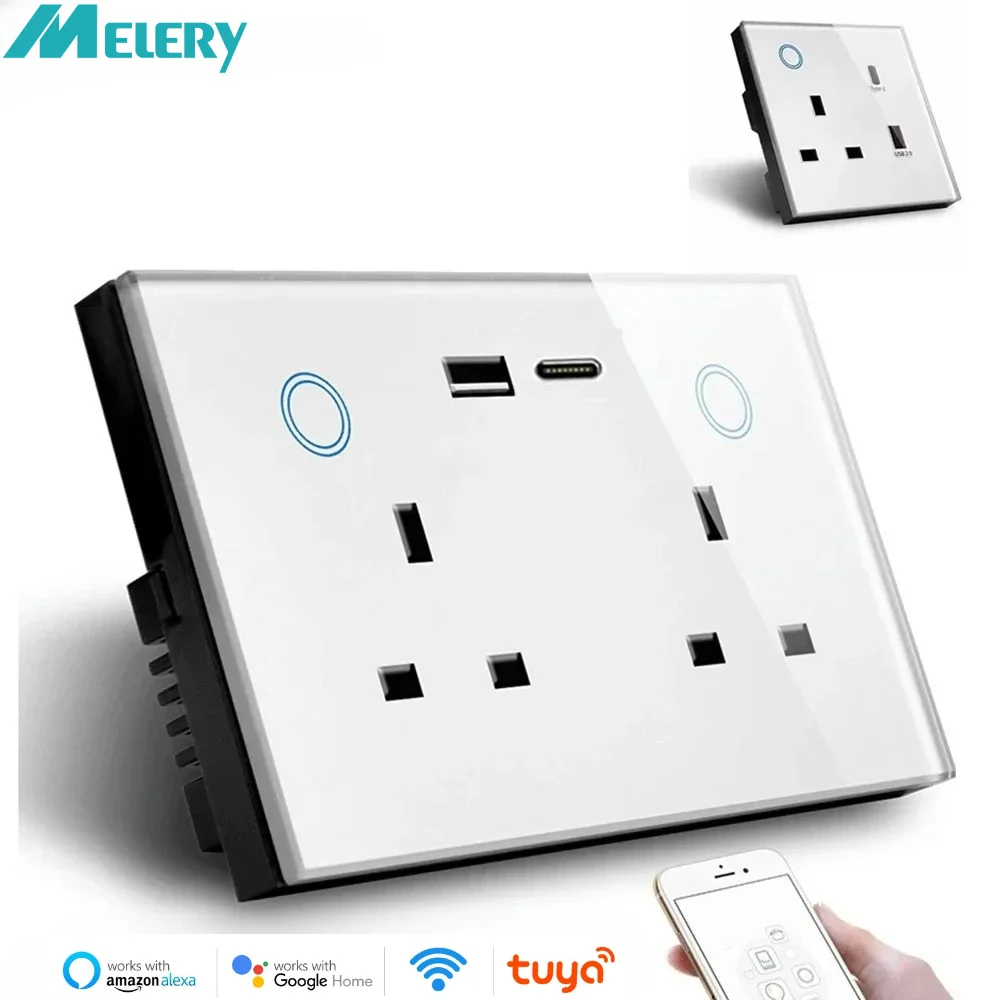
Successful pairing adds the device to your Tuya dashboard. Immediately explore its dedicated control card to rename it (e.g., “Bedroom Lamp”) and assign it to a room. For complex setups, leverage the automation features found in the ‘Smart’ tab to create scenes, like having a smart plug turn on a coffee maker at 7 AM. Your configuration is now complete, transforming standalone products into a coordinated, intelligent network.
Getting Started: Downloading the Tuya Smart App
Open your smartphone’s official application store–Google Play for Android handsets or the App Store for iPhones.
Search for “Tuya Smart” using the store’s search bar. Look for the developer named “Tuya Inc.” to ensure you get the authentic software. Tap the “Get” or “Install” button to begin the download and installation process on your mobile device.
This platform is essential for managing a vast ecosystem of compatible gadgets. Popular products like the Gosund Smart Plug or Moe’s Smart Light Bulbs on AliExpress all rely on this single application for setup and control.

| Store | Action | Verification Tip |
|---|---|---|
| Google Play (Android) | Tap “Install” | Confirm developer: “Tuya Inc.” |
| App Store (iOS) | Tap “Get” | Icon features a blue “T” on white. |
After installation, launch the application and create an account. This account is your key to the cloud, allowing remote management of your devices from anywhere. Keep your login credentials secure.
Before initiating the pairing process for a new device, ensure your mobile phone is connected to a stable 2.4GHz Wi-Fi network. Most smart home products, like smart sockets or thermostats, require this frequency band for initial setup.
With the application downloaded and an account ready, you are prepared to add your first gadget. The in-app pairing guide will typically involve putting the device into pairing mode, often by holding a button until an LED indicator flashes rapidly.
Finding the Official App on the Google Play Store
Open the Google Play Store on your mobile and search for “Tuya Smart” or “Smart Life”. The official application is published by “Tuya Inc.” or “Tuya Global Inc.”; verify this developer name before proceeding.
Look for the icon with a white “S” on a blue background or a multicolored “T”. Avoid clones with similar names; the genuine software is essential for successful device pairing and configuration.
Check the download count–it should be in the hundreds of millions–and read recent reviews to confirm functionality with popular products like the Gosund smart plug or the Zemismart LED strip from AliExpress.
Once identified, tap “Install”. This download is the first critical step for your smart home setup, enabling you to control all compatible gadgets from a single dashboard after initial configuration.
Locating the Correct App in the Apple App Store
Open the App Store on your iPhone or iPad and tap the search icon. Enter “Tuya Smart” or “Smart Life” directly into the search bar; both are official applications from the developer “Tuya Inc.” for managing compatible devices.
Verify the developer name before tapping “Get.” Avoid third-party apps with similar names. The genuine application’s icon is a white “T” on a blue gradient background.
This software is essential for controlling products like the Gosund Smart Plug or the LSC Smart LED Strip from AliExpress. After download, launch it to begin account creation and device configuration.
Ensure your mobile operating system is updated to the latest version for optimal compatibility during the setup process. A stable Wi-Fi connection is required for pairing your smartphone with new smart home gadgets.
Checking Your Phone’s Compatibility and OS Version
Before you proceed with the download, verify your mobile device meets the minimum system requirements for a smooth setup.
For devices running Android:
- Your operating system must be Android 7.0 (Nougat) or a more recent version.
- Check this in Settings > About Phone > Software Information.
- Popular compatible models include Samsung Galaxy A-series, Google Pixel, and Xiaomi Redmi Note lines.
For iOS devices:
- You need iOS 12.0 or later installed.
- Confirm this by navigating to Settings > General > About.
- This covers iPhone 5s and newer, iPad Air (1st gen+) and iPad mini 2+.
An outdated OS is the primary cause for failed installation or pairing issues with smart products like the Gosund Smart Plug or Moe’s Home WiFi Light Bulbs from AliExpress. Update your OS via your device’s settings if necessary before beginning the configuration.
Ensure your phone has at least 200MB of free storage and a stable WiFi connection for the initial device pairing process outlined in the setup guide.
Downloading the App Over a Stable Wi-Fi Connection
Always initiate the download using a reliable Wi-Fi network, not mobile data. A stable connection prevents file corruption during acquisition, which is critical for subsequent device pairing and configuration.
Verify your network’s strength before proceeding. For large firmware updates during setup–common with products like the Gosund Smart Plug or the LSC Smart Ceiling Light from AliExpress–a robust Wi-Fi signal is non-negotiable.

Disable any active VPN services on your smartphone during the download process, as they can redirect your connection to a regional app store, causing version mismatches.
Ensure background app refresh is enabled on iOS or that download restrictions are off in your Android settings to allow the application to complete fetching without interruption.
If the download seems slow, restart your router and your mobile device to refresh the connection before attempting again, securing a smooth path to the hardware setup phase.
Creating and Verifying Your Tuya Account
Open the downloaded application and tap “Sign Up” to begin the account setup process.
Use a valid email address or mobile phone number for registration; this is crucial for device recovery and security alerts.
Create a strong password combining letters, numbers, and symbols, then enter the verification code sent to your email or phone.
Complete the verification step immediately to unlock full platform functionality for device pairing and management.
Log in with your new credentials. Navigate to the ‘Profile’ or ‘Account’ section to confirm your email or phone status is listed as “Verified”.
Before adding hardware, ensure the mobile application has necessary permissions like location services (often required for Bluetooth discovery) and notifications.
A successful configuration hinges on this foundational account setup, enabling seamless integration of new devices during the pairing phase.
Choosing Between Email and Phone Number Registration
For most users, email registration is the superior choice due to its flexibility and long-term stability. This method decouples your account from a specific mobile number, allowing seamless login on tablets or new devices even if your SIM card changes. It’s ideal for managing smart plugs or robot vacuums from AliExpress across different household members’ phones without linking to a personal phone number.
Opt for phone number registration if you prioritize rapid recovery of account access. Verification via SMS is often faster than waiting for an email link, which is crucial if you need to quickly reconfigure a smart lock during setup. However, this ties your account to that number; changing or losing it complicates future access and device pairing.
Your decision impacts the configuration workflow. An email-based account simplifies sharing control of a smart light strip with family by simply adding their emails. A phone-linked account may streamline initial pairing in regions where SMS verification is more reliable than email delivery, but it limits administrative flexibility for your entire smart home ecosystem.
Question-Answer:
My phone is from China but I live in Europe. Which app region should I choose during setup?
The region you select in the Tuya Smart app should be based on your physical location, not your phone’s origin. Choose the region where you are currently using the devices. For Europe, select “Europe.” This ensures you connect to the correct local servers for faster response times and compliance with regional data regulations. Your phone’s manufacture location does not affect this setting.
I can’t find the Tuya app on the Apple App Store. What’s wrong?
There are a few possibilities. First, ensure your iPhone’s iOS version is supported. Second, the app might have a different official name in your country’s storefront. Try searching for “Smart Life” or “TuyaSmart” as well. Third, check if your App Store account is set to a country where the app is officially distributed. If you are using a work or managed Apple ID, app installation might be restricted by your organization’s policies.
The app asks for location permission. Is this required, and what does Tuya use it for?
Yes, granting location access is often required for initial setup. The app uses this permission for two main reasons. First, to quickly scan for nearby Bluetooth-enabled smart devices during the pairing process, which requires location services to be active on both Android and iOS. Second, to automatically suggest the correct server region for your network. You can typically adjust the permission to “While Using the App” after setup is complete.
What’s the difference between adding a device by scanning a QR code versus selecting it from the list?
Using the QR code (usually found on the device or its manual) is the most direct method. It automatically tells the app the exact device model and recommended connection method (Wi-Fi, Bluetooth, etc.). Selecting from the list requires you to manually choose the device category and model. If you pick the wrong model from the list, the setup steps may not match your device, leading to failure. The QR code method is more reliable and faster.
After connecting to the device’s hotspot, the app stays on the “Connecting” screen for a long time and then fails. How do I fix this?
This common issue usually involves your phone’s internet connection. When your phone is connected to the device’s weak hotspot, it loses its main Wi-Fi internet access. Ensure your mobile data is turned ON during this step. The app needs an active internet connection to communicate with Tuya’s servers and register the device. Also, keep your phone close to the smart device, and avoid walking away during this 30-60 second process.
My phone is from China but I live in Europe. Which app region should I choose during setup, and what’s the difference?
The region selection is critical as it determines which server your devices connect to, affecting performance and available features. Choose the region where you currently live and use the devices (e.g., Europe). This ensures your commands are routed through the nearest server for faster response times. The main differences are server location, local service compliance, and sometimes slight variations in the app’s feature list tailored to regional market preferences. If you select China while being in Europe, you may experience significant lag when controlling devices.
I installed the app and created an account, but my smart plug won’t connect. It keeps failing near the end of the process. What can I do?
This is a common hurdle. Focus on your phone’s connection settings. The Tuya app uses your phone’s Wi-Fi to send network credentials to the device. Ensure your phone is connected to your home’s 2.4GHz Wi-Fi band (smart plugs typically don’t support 5GHz). During setup, if your phone asks to “Switch” networks to a Tuya-xxx signal, you must allow it. The most reliable fix is to power cycle your router and the smart plug, then attempt the pairing process again within 5 minutes of plugging it back in. Keep the plug close to your router during setup.