



As smart homes become more advanced in 2026, many users are moving beyond standalone apps and building fully unified automation systems using Home Assistant. Tuya-powered devices remain some of the most widely used smart home products worldwide thanks to their affordability and massive device ecosystem. However, connecting Tuya devices to Home Assistant can still be confusing for beginners due to changing integrations, cloud vs local control options, and evolving setup requirements.
Table Of Content
- Understanding Your Tuya Integration Options
- Comparing the Official Tuya Integration vs. Local Tuya
- Why the Cloud API Method is the Current Recommended Path
- Identifying Which Tuya Devices Can Work Locally
- Preparing Your Tuya Developer Account and Cloud Project
- Creating Your Tuya IoT Platform Account
- Steps to Create a Cloud Project and Link Your Devices
- Question-Answer
- I have a lot of Tuya devices. What’s the actual difference between using the official Tuya integration and the localTuya method?
- I tried the official integration, but my devices often show as “unavailable.” What usually causes this?
- After setting up LocalTuya, some device features (like brightness control for a light) don’t work. How do I fix this?
- Obtain API credentials by creating a Tuya IoT cloud project and linking your app account for official integration setup.
- Use LocalTuya for direct LAN control when devices expose a local key for faster, private, offline operation.
- Verify device local capability via documentation, Smart Life tests, or tuya-cli before purchasing or choosing integration method.
- Enable required Service APIs (Device Management, Control, Status Notification) in the Tuya project for full functionality.
- Match device Data Point IDs exactly in LocalTuya configurations to restore missing features like brightness or color control.
Integrating Tuya devices with Home Assistant allows you to centralize automation, improve response speed, reduce cloud dependency, and unlock advanced smart home scenarios that are not possible inside the standard Tuya Smart or Smart Life apps. With the right setup method — whether using official Tuya integration, LocalTuya, or cloud API solutions — you can gain full control over lights, sensors, switches, and security devices inside a single automation platform.
In this 2026 setup guide, you’ll learn the easiest and most reliable ways to connect Tuya devices to Home Assistant, avoid common setup errors, and choose the best integration method based on your technical level and smart home goals.

To bridge your affordable smart gadgets with a robust local control system, start by installing the official Tuya integration directly via the add-on store. This official method, maintained by the platform’s developers, provides the most reliable foundation for pairing countless Wi-Fi devices, from Amazon basics like Gosund smart plugs to AliExpress finds like MoesHouse thermostats, with your central automation hub.
The core challenge in this IoT setup involves linking your products through the Tuya IoT Development Platform to obtain critical API credentials–a Local Key and a Secret. This step is non-negotiable for secure communication and is where many users encounter initial hurdles; meticulously follow the project creation and device linking process in the Tuya cloud console to authorize your hub’s access to each bulb, sensor, or switch.
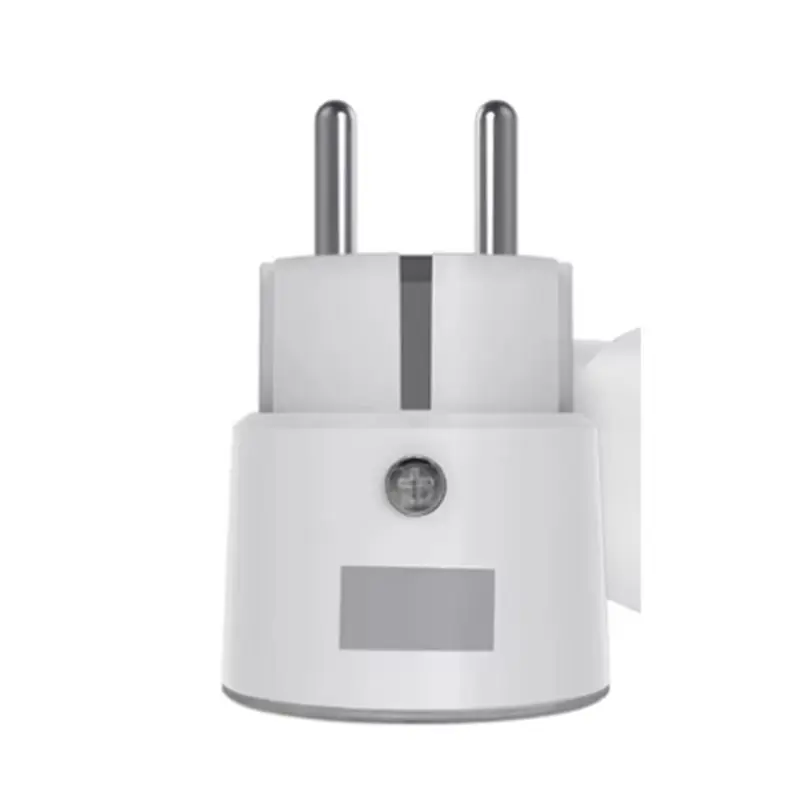
Once configured, this integration transforms your disparate smart purchases into a unified, responsive network. You can then craft advanced automation routines, such as having a Tuya motion sensor from AliExpress trigger both native lights and other platform-compatible devices, moving beyond basic app schedules to truly intelligent, local execution that enhances both reliability and privacy in your connected home.
Understanding Your Tuya Integration Options
Choose the Local Tuya method for reliable, cloud-independent operation of compatible gadgets like the Zemismart LED strip or Gosund smart plug.
The official Tuya integration via the cloud is simpler to configure but depends on the vendor’s platform and internet connectivity.
| Method | Core Principle | Best For | Example Device Models |
|---|---|---|---|
| Local Tuya | Direct local communication, bypassing the cloud after initial setup. | Users prioritizing speed, privacy, and offline functionality. | Moe’s House Thermostat, LSC Smart Connect Flood Sensor. |
| Official Tuya Integration | Cloud-based synchronization using Tuya’s official IoT platform API. | Those seeking a quick setup for a wide range of non-local-capable appliances. | Teckin Smart Power Strip, Lidl Silvercrest Smart Lights. |
| Tuya v2 (HACS Custom Component) | An alternative cloud integration, sometimes offering more detailed entity configuration. | Advanced users needing finer control over cloud-linked devices when Local Tuya isn’t viable. | Blitzwolf PIR Motion Sensor, Nous A1T Air Quality Monitor. |
Verify local control capability before purchase; check device documentation for “Local Only” or “LAN” protocol support. The initial configuration for Local Tuya requires extracting device-specific keys from the vendor’s cloud platform, a one-time process.
For cloud-based integrations, you must create a project on the Tuya IoT Platform to obtain necessary API credentials (Access ID, Secret). This links your smart ecosystem to their servers.
Consider using the dedicated “Tuya” add-on from the supervisor store to simplify the official cloud integration setup within your environment. This managed install handles dependencies.

Your choice directly impacts automation reliability; local devices respond instantly, while cloud-dependent ones may suffer latency. Mixing methods is common, using Local Tuya for critical lighting and the official integration for simpler appliances like an Arlec smart fan.
Comparing the Official Tuya Integration vs. Local Tuya
For a reliable, cloud-dependent setup, choose the official add-on; for ultimate speed and privacy, opt for the local method.
The official integration, built on Tuya’s IoT Core platform, requires a cloud project in the Tuya IoT portal. This process involves obtaining a Client ID and Secret for configuration. It provides broad device compatibility out-of-the-box, automatically adding entities for common smart products like the Gosund Smart Plug (Amazon) or the LSC Smart Ceiling Light. However, all commands and sensor data route through the vendor’s servers, introducing latency to automations and causing devices to appear “unavailable” during internet outages.
In contrast, the LocalTuya integration establishes a direct connection to the hardware. It requires extracting each device’s local key–a technical step often involving scripts and the Tuya IoT platform–and manually configuring the IP address, device ID, and key for every single unit, such as a Moes Thermostat (AliExpress) or a Zemismart Switch. The payoff is near-instantaneous control and operation fully independent of the cloud. This method is ideal for critical automations where millisecond response matters, like turning on a security light.
Your device firmware is the deciding factor. Many newer or vendor-locked gadgets block local access, forcing you to use the official cloud path. Always verify local key accessibility before purchase; community forums often list confirmed models. For a mixed ecosystem, running both integrations simultaneously is a valid strategy, using the local method for priority devices and the official one for the rest.
Why the Cloud API Method is the Current Recommended Path
For most users, the official cloud-based integration via the Tuya IoT Platform is the most reliable and future-proof choice. It leverages Tuya’s own API, ensuring compatibility with the widest array of smart products, from smart plugs and light bulbs to complex climate control devices.
This approach eliminates the need for persistent local network discovery or complex firmware flashing. The setup is managed through a dedicated add-on, which handles the secure communication between your smart home hub and Tuya’s servers. Once configured, all supported gadgets appear instantly and remain consistently available for automation.
Unlike local-only methods, the cloud API guarantees that device status updates are immediate and bidirectional. This is critical for creating robust automations; for instance, a scene triggering a Gosund smart plug from Amazon or a Moes thermostat from AliExpress will reflect its state change in the interface without lag. The platform’s official support also means new device categories and features are added systematically.
While dependent on an internet connection, the stability and breadth of device support are unparalleled. The initial configuration, involving project creation on the Tuya IoT portal and key generation, is a one-time process that pays off in long-term management ease. For a unified system with minimal maintenance, this integration path is superior.
Identifying Which Tuya Devices Can Work Locally
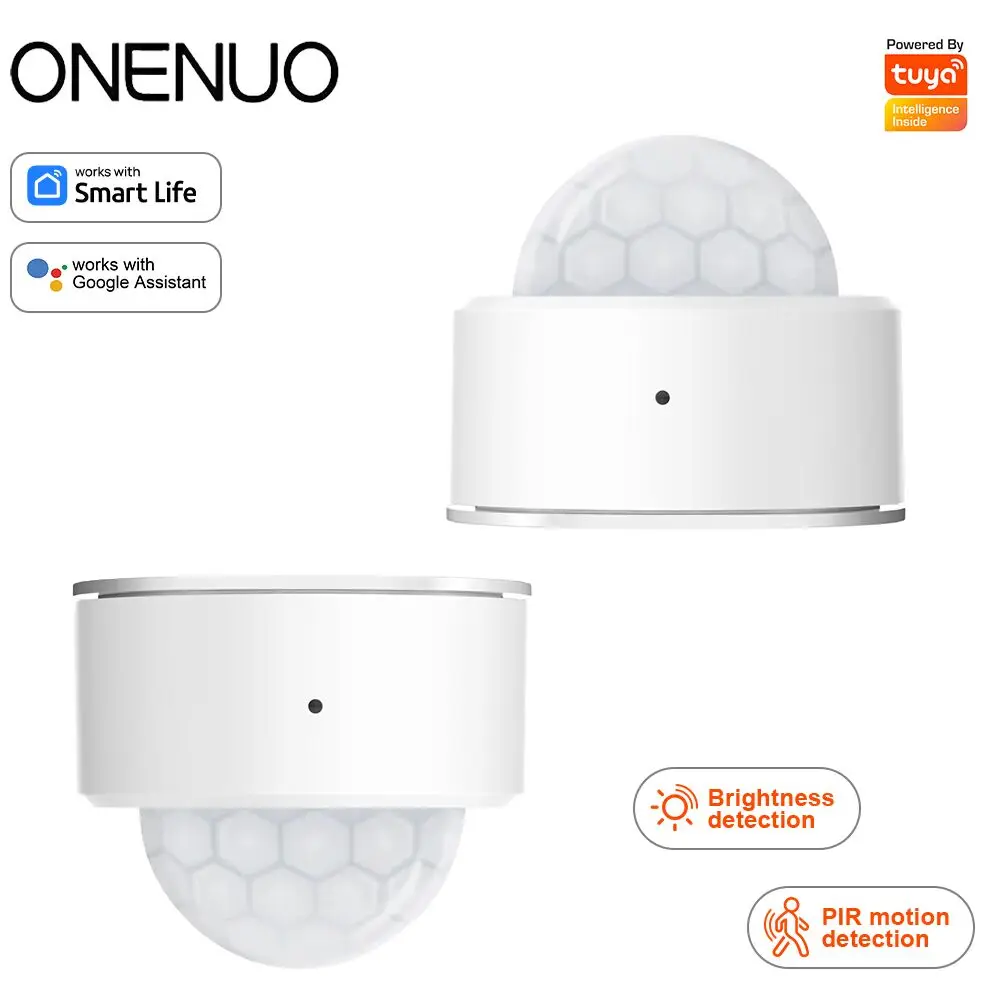
Begin by checking the device’s protocol directly on retailer pages like Amazon or AliExpress. Look for mentions of “Local Control,” “LAN Control,” or specific protocols like Zigbee or Z-Wave, which operate independently of the cloud. The phrase “Works with Smart Life” often, but not always, indicates a cloud-dependent Tuya IoT product.
Use the official Tuya IoT platform development tool to get definitive data. Follow these steps:
- Add your gadget to the Smart Life or Tuya app.
- Navigate to the automation tab and create a “Smart” scene.
- Tap “Add Condition” and select your device. If local device triggers (e.g., “Device Status Changes”) appear, it supports local execution.
For a technical verification, use the tuya-cli add-on. This command-line tool queries devices on your network to reveal their local key and protocol. A successful response with a local key confirms the appliance is a candidate for a local integration like “LocalTuya.” Devices that only respond via the cloud API will fail this test.
Common product categories with high local compatibility include:
- Basic switches and dimmers (e.g., Gosund smart plugs).
- Many RGB bulbs and light strips (e.g., LSC Smart LED strips).
- Simple sensors (contact, motion).
Be cautious with complex appliances like robot vacuums, smart air conditioners, or cameras. These often rely heavily on cloud services for advanced features and media processing, making full local control difficult. Always confirm before purchase if a local setup is your primary goal for the automation platform.
Preparing Your Tuya Developer Account and Cloud Project
Begin by registering for a free developer account on the Tuya IoT platform website, not through the consumer-facing Smart Life app.
Once logged into the developer console, navigate to “Cloud” and click “Create Cloud Project”. Select “Smart Home” as the industry and “Development” for the data center location; the latter is crucial for ensuring low latency for your automations.

After creation, you must link your consumer account. Within your project, go to “Devices” > “Link Tuya App Account”. Use the “Add App Account” function and scan the QR code with your Smart Life app to authorize the linkage.
Retrieve the critical access keys: the “Access ID/Client ID” and “Access Secret/Client Secret” from the “API” tab under “Service API” in your project. These credentials are essential for the official integration’s configuration in your smart home system.
Finally, authorize the necessary API services. For most common gadgets like smart plugs from Gosund or light strips from LSC, you typically need to enable “Device Management”, “Device Control”, and “Status Notification” APIs to ensure full functionality.
Creating Your Tuya IoT Platform Account
Navigate directly to the Tuya IoT development portal and select “Sign Up” using an email address not already linked to a consumer Smart Life app. This separation is critical for managing your automation backend independently from your personal mobile application.
After verifying your email, log into the platform. You must immediately create a cloud project: click “Cloud” -> “Development” -> “Create Cloud Project”. Choose “Smart Home” as the industry and “Development” for the data center location; the name can be “HomeHub_Config”. The development model is “Smart Home PaaS”.
Within your new project, go to “Devices” -> “Link Tuya App Account”. Click “Add App Account” and scan the QR code with your smart phone’s Smart Life app. This authorizes the platform to access your specific devices, like your Moe’s Star WiFi Smart Plug from Amazon or LSC Smart Ceiling Light from AliExpress, for API control.
Next, secure your API credentials. Under “Cloud” -> “Project” -> “API Explorer”, you need the “Access ID/Client ID” and “Access Secret/Client Secret”. These are the essential keys for the integration; treat them like a password. For the configuration to succeed, you must also authorize specific API services: within “Service API”, enable “IoT Core”, “Authorization”, and “Smart Home Devices Management”.
Finally, link your physical devices. The platform will now display all linked IoT products. Confirm that the listed items match your actual hardware, such as your Tesvor X5 Smart Robot Vacuum. This verification ensures the subsequent add-on setup pulls the correct data points for local or cloud control, completing the foundational account configuration.
Steps to Create a Cloud Project and Link Your Devices
Navigate to the Cloud tab in your IoT platform dashboard and click “Create Cloud Project”.
Select “Smart Home” as the industry, choose the “Development” data center, and name your project, for instance, “My Home Automation”.
After creation, go to the project’s Configuration and note the Access ID/Client ID and Access Secret/Client Secret; these are critical for your automation hub setup.

Click “Link Device by App Account” and authorize your personal smart home app (e.g., Smart Life) by scanning the QR code. This links all associated devices, like a Gosund smart plug from Amazon or a Moe’s thermostat from AliExpress, to the cloud project.
Finally, under “Devices” in your project, confirm your gadgets appear. Enable the necessary API services, typically “Device Status Notification” and “Smart Home Scene Linkage”, for full functionality.
Question-Answer:
I have a lot of Tuya devices. What’s the actual difference between using the official Tuya integration and the localTuya method?
The core difference is where the control happens. The official Tuya integration relies on the cloud. When you press a button in Home Assistant, the command goes to Tuya’s servers, which then talk to your device. This requires an internet connection and can have delays. LocalTuya, however, finds the device’s local key and allows Home Assistant to communicate with it directly over your local network. This means control is instant and works even if your internet goes down. Setting up LocalTuya is more technical, as you need to extract each device’s local key from the Tuya IoT platform, but it provides a faster, more reliable, and private connection.
I tried the official integration, but my devices often show as “unavailable.” What usually causes this?
This is a frequent cloud-related issue. The most common cause is a mismatch between the data points (DPs) the integration expects and what your device actually uses. The Tuya cloud API can change, and device templates in Home Assistant might be outdated. First, check the device’s status in the Tuya Smart Life app. If it works there, the problem is likely the integration. Try removing and re-adding the device to your Tuya project in the IoT platform, then reload the integration in Home Assistant. For a permanent fix that avoids this, consider switching to LocalTuya for those devices, as local control doesn’t suffer from cloud API changes.
After setting up LocalTuya, some device features (like brightness control for a light) don’t work. How do I fix this?
This happens when the Data Point (DP) IDs in your LocalTuya configuration are incorrect. Each function (switch, brightness, color) has a unique DP number. To find the correct ones, go back to your device in the Tuya IoT Platform. Under the “Debugging” section for that device, use the “Get Device Functions” or “Get Device Specifications” command. This returns a list of all DPs the device supports and their types. Match these exact DP numbers and value types (e.g., Boolean for on/off, Integer for brightness percentage) to the fields in your LocalTuya configuration in Home Assistant. A single wrong digit will cause that feature to fail.