



Reset Your Tuya Smart Device is the fastest and most effective way to fix connection issues, restore factory settings, and reconnect your smart home gadgets to a new Wi-Fi network. Whether your device stopped responding, won’t pair with the app, or you’ve changed your router, knowing how to Reset Your Tuya Smart Device helps you regain full control in minutes. A proper reset ensures stable performance, smooth automation, and reliable communication between your smartphone and all Tuya-powered smart devices in your home.
Table Of Content
- Quick Reset Methods for Tuya Smart Devices
- Finding the Physical Reset Button on Your Device
- Standard 5-Second Press and Hold Reset Procedure
- Using the Tuya/Smart Life App to Initiate a Reset
- What to Do If Your Device Doesn’t Have a Reset Button
- Resetting a Tuya Device Step-by-Step Guide
- Preparing Your Device and Smartphone for the Process
- Question-Answer
- My Tuya smart plug isn’t connecting to the app anymore. How do I get it back into pairing mode?
- I’m moving to a new Wi-Fi network. Do I need to reset all my Tuya devices?
- What’s the difference between restarting and resetting a Tuya device?
- I held the reset button, but the light on my bulb just turned off and nothing else happens. What did I do wrong?
- Use a paperclip or SIM ejector to press the recessed reset pinhole for 5–10 seconds until the LED flashes rapidly.
- After reset, open Tuya/Smart Life app and follow the pairing process; ensure phone is on the 2.4 GHz Wi‑Fi band.
- If no button exists, use power cycling, app "Remove Device," or connect to the device hotspot to force reconfiguration.

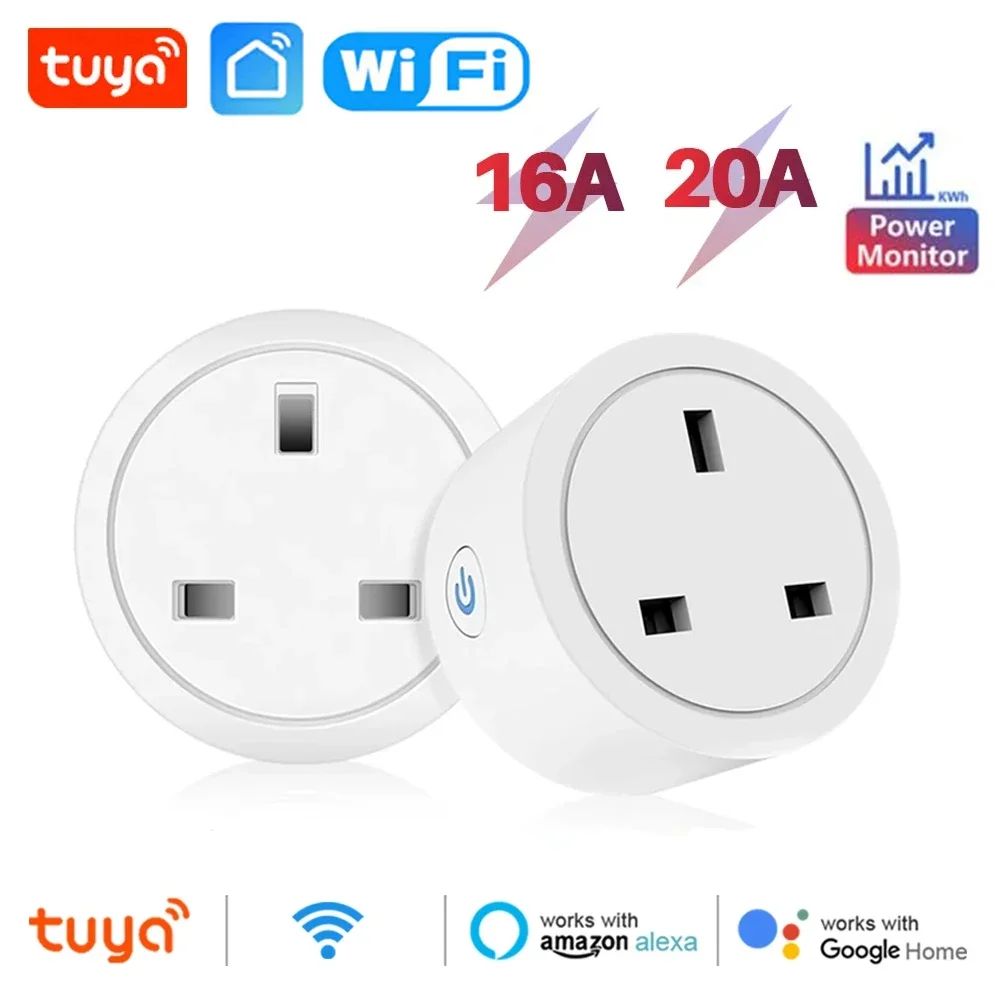
Locate the physical button on the appliance, often a small recessed pinhole. For items like the Merkury Innovations Smart Plug from Walmart or a generic Smart LED Bulb from AliExpress, you’ll typically need a paperclip. Press and hold this control for about 5-10 seconds until the status LED flashes rapidly, signaling the initiation of the restoration sequence. This action clears all previous wi-fi credentials and customizations.

Following this procedure returns the unit to its original factory state, a crucial move when changing your home network or if the gadget becomes unresponsive. It is the most effective troubleshooting step before seeking further help. Always consult the product’s manual first, as timing can vary; for instance, some Gosund Mini Smart Outlets require a 15-second hold until multiple flashes confirm the wipe.
Once the gadget is ready for setup, open the companion app on your smartphone and follow the standard pairing process to reconnect it to your wireless system. This clean slate often resolves connectivity ghosts and performance issues, making your smart home ecosystem reliable again.
Quick Reset Methods for Tuya Smart Devices
Locate the small, recessed button on your gadget, often found near the power port or labeled ‘RST’. Use a paperclip to press and hold it for 5-10 seconds until the indicator light flashes rapidly, signaling a successful factory restoration.
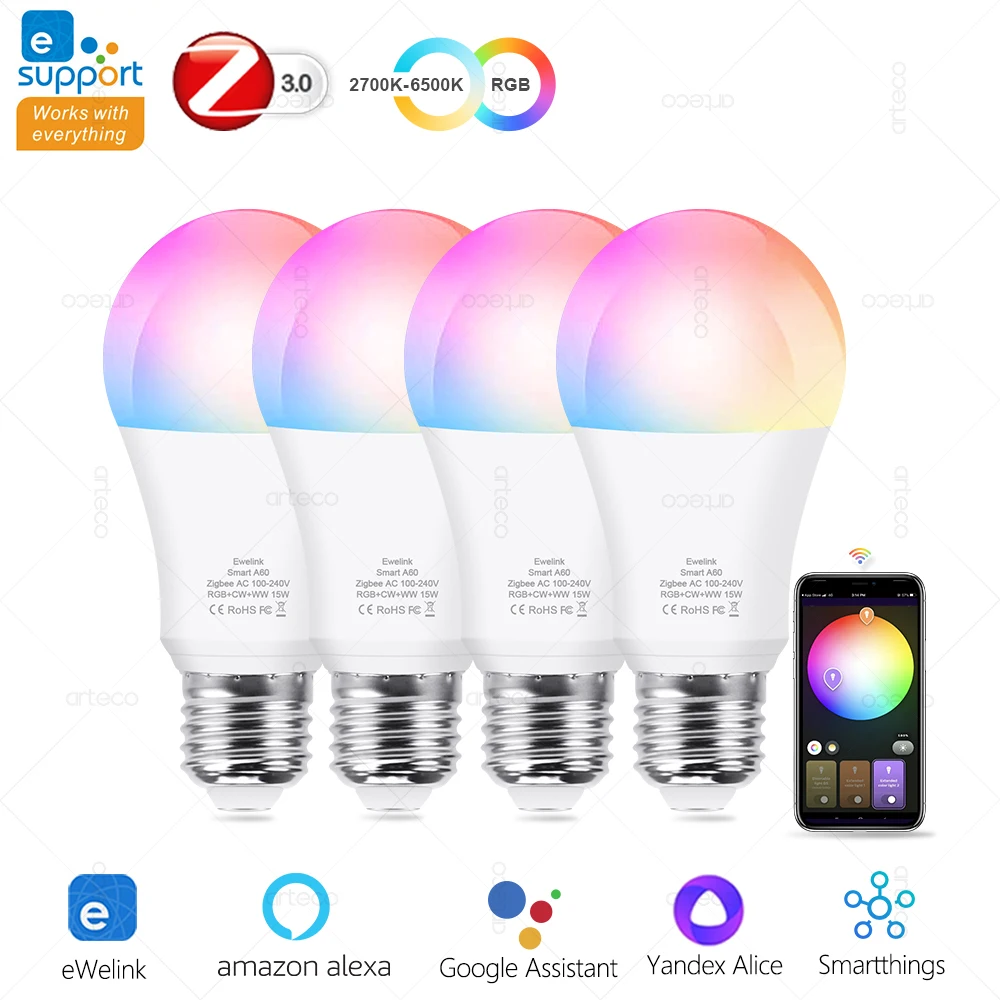
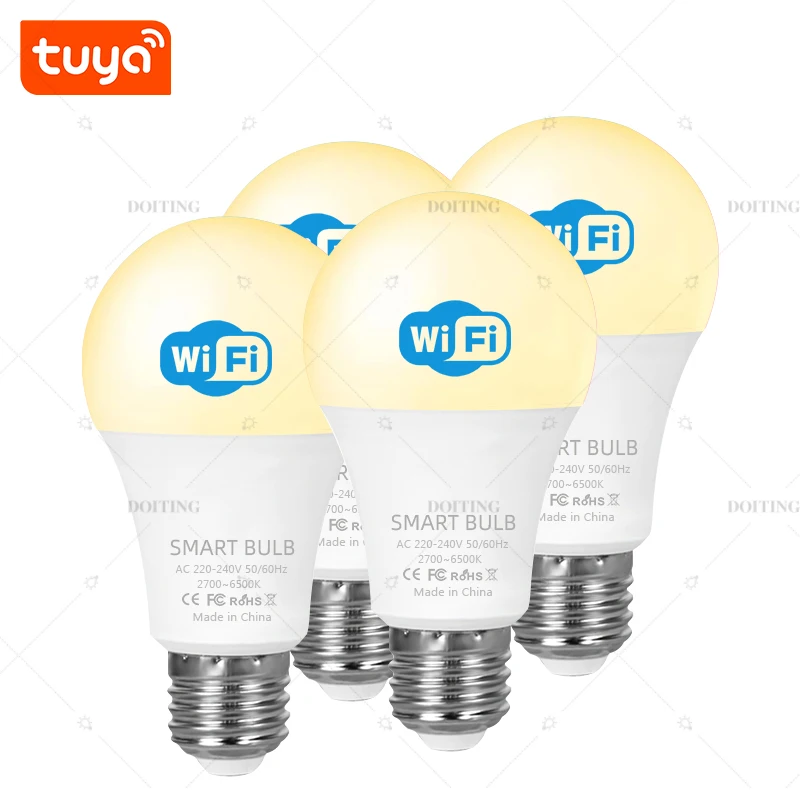
For smart bulbs like the LUMIMAN or Merkury models, power the lamp on and off three times consecutively, pausing one second between each cycle. The final flicker confirms the procedure is complete and the bulb is ready for a fresh network configuration.
Utilize the companion smartphone application as an alternative. Navigate to the device’s settings within the app, select ‘Remove Device’ or ‘Delete’, and follow the prompts. This software-based approach often clears the existing Wi-Fi pairing without needing the physical manual button.
If a smart plug or switch, such as a popular Gosund or Treatlife module, becomes unresponsive, disconnect it from power for a full 30 seconds. Reconnect while holding its reset button; this forces a hardware reboot and clears any corrupted settings, a key step in advanced troubleshooting.
Always ensure your phone is connected to the correct 2.4GHz band network before attempting to re-pair. A failed connection is frequently a band mismatch, not a faulty restoration.
Finding the Physical Reset Button on Your Device
Locate the small, recessed pinhole typically found on the side or bottom of the appliance; this is the most common design for the manual restoration switch.
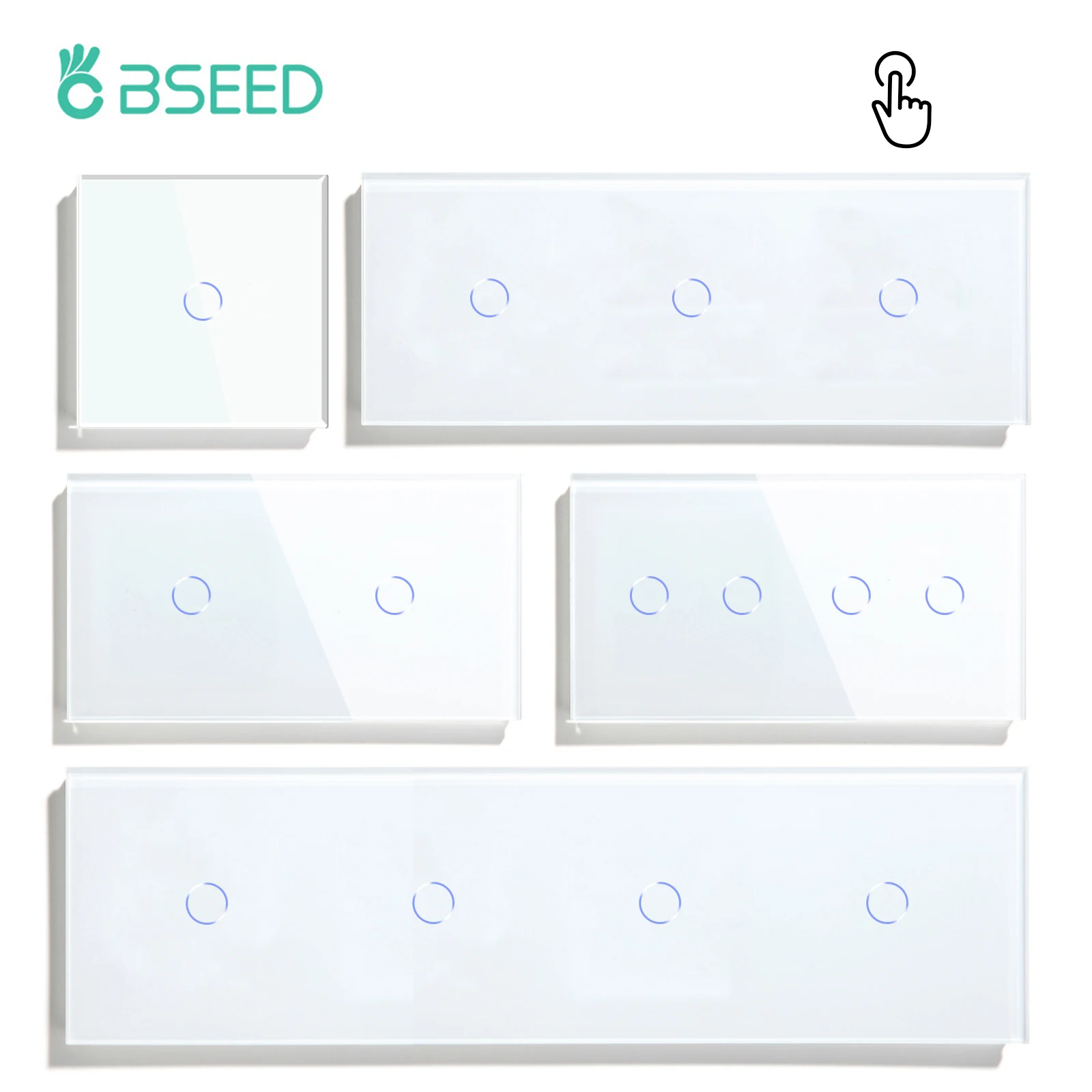
| Product Type | Common Button Location | Action Required |
|---|---|---|
| Smart Sockets & Plugs | Side, between live and neutral pins. | Press and hold for 5-10 seconds until the LED flashes rapidly. |
| Smart Light Bulbs | Base of the bulb, near the threads. | Power cycle the bulb 3-5 times or hold button if present. |
| Thermostats & Controllers | Back panel or inside the battery compartment. | Use a paperclip to press for 10+ seconds. |
Use a non-conductive tool like a SIM ejector or paperclip to engage the pinhole mechanism. Maintain pressure until the indicator light behaves erratically, signaling the commencement of the factory restoration sequence. This clears all previous network and configuration data.
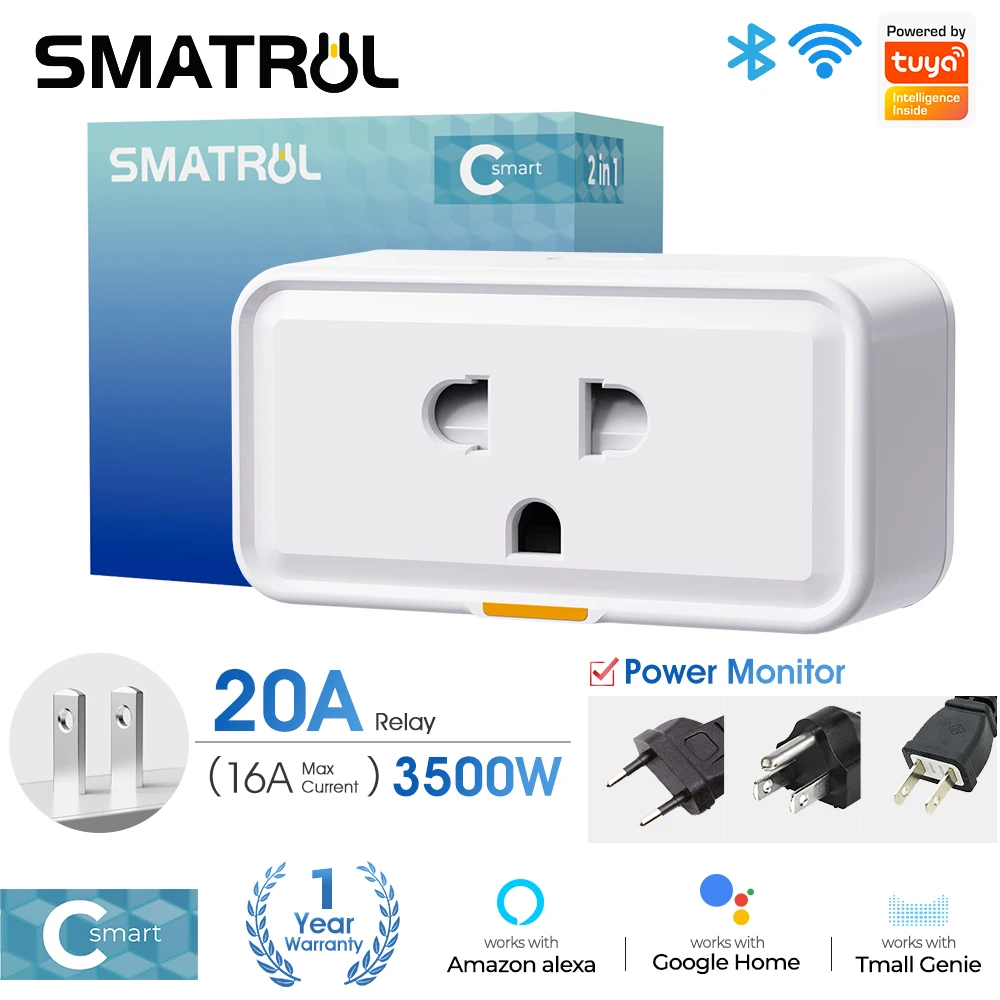
Successful activation is confirmed by a specific LED pattern–often a fast blink or color change–different from the standard connection mode. Refer to the original manual for the precise light code, as it varies. This physical method is crucial for troubleshooting when the gadget is unresponsive in the companion smartphone application or needs to join a new Wi-Fi network.
Standard 5-Second Press and Hold Reset Procedure
Locate the recessed factory default pinhole button, often found near the product’s power input. Use a straightened paperclip or SIM ejector tool to press and hold it firmly.
Maintain constant pressure for a full five seconds. You will observe the unit’s LED indicator flash rapidly or change color, signaling the initiation of the configuration wipe. Release the button immediately after this visual cue.
This action erases all custom settings, including your saved Wi-Fi credentials and any linked app data. The gadget, like a popular Gosund smart plug or a LSC Smart Ceiling Light from AliExpress, will reboot into its initial setup state, appearing in your smartphone app as a new, discoverable unit.


Consult your product’s manual for the exact LED blink pattern, as it varies by model. This fundamental troubleshooting step resolves most connectivity and responsiveness issues by clearing corrupted network data.
Using the Tuya/Smart Life App to Initiate a Reset
Open the Tuya or Smart Life application on your smartphone and navigate directly to the configuration page for the problematic gadget, such as a smart plug or an LED strip controller from AliExpress.
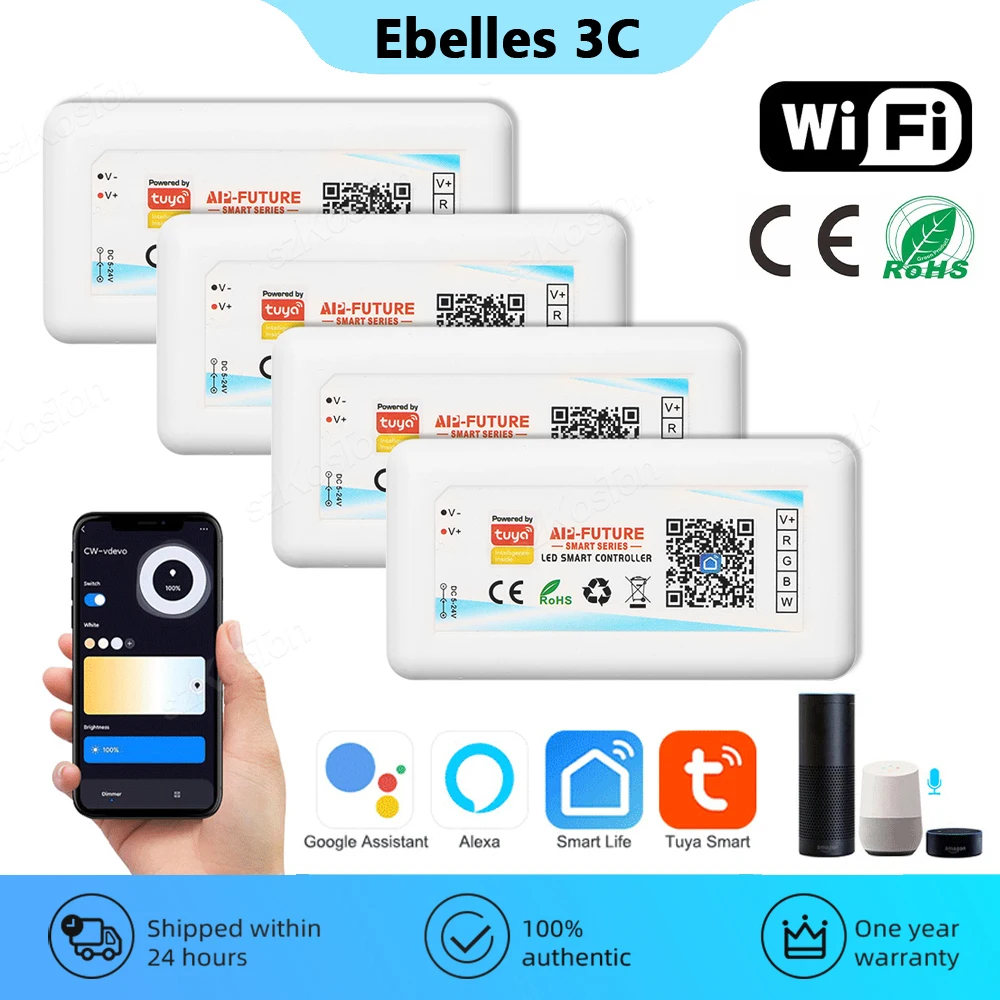
Locate the troubleshooting or device settings menu, often represented by a gear icon. Select the option labeled “Remove Device” or “Delete.” This action erases the gadget’s current wi-fi credentials and pairing data from the app, effectively performing a soft reset.
For a more thorough restoration, some appliance modules and switches offer a “Restore Factory Settings” choice within this same menu, which is preferable when changing your home network or if the unit is entirely unresponsive.
After deletion, add the product again as if it were new. Ensure it is in pairing mode, typically by using the physical button (refer to the manual for the specific sequence if the standard method fails) to connect it to your network.
What to Do If Your Device Doesn’t Have a Reset Button
First, consult the product’s manual or listing on AliExpress (e.g., “Mingmer Smart Plug” or “LSC Wi-Fi LED Strip”) for specific factory restoration instructions.
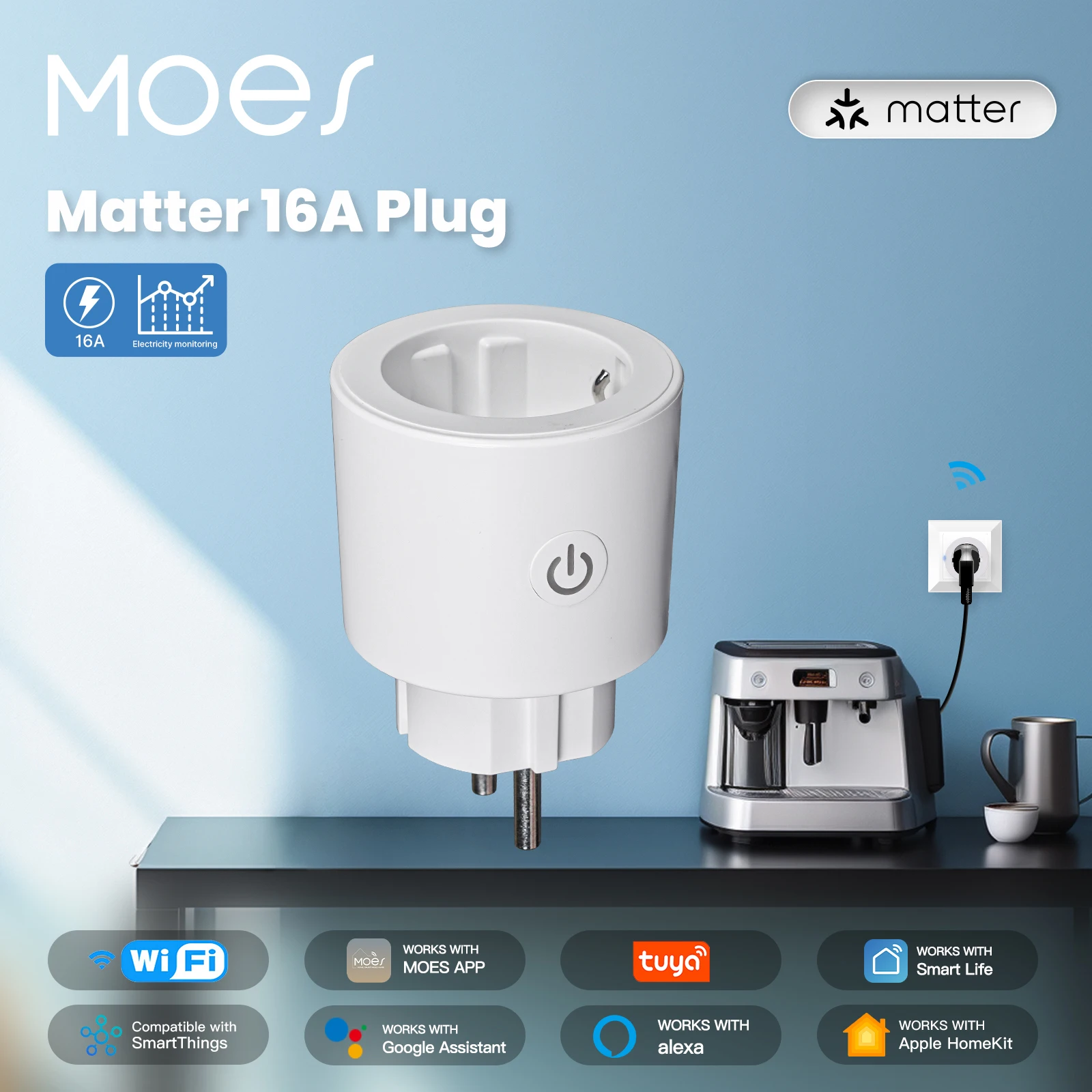

Common alternative methods to restore default settings include:
- Power cycling the gadget five times in rapid succession, watching for a rapid blinking light indicating entry into pairing mode.
- Holding the primary function button for 10-15 seconds upon applying power until an indicator light flashes rapidly or changes color.
If physical methods fail, force a reconfiguration via the companion app:
- Delete the appliance from your smartphone app.
- Initiate the “Add Device” process as if it were new.
- When prompted to connect to the gadget’s hotspot (often named “SmartLife-XXXX”), do so from your phone‘s Wi-Fi settings. This often triggers an internal factory reset.
Advanced troubleshooting involves cutting power for over 30 minutes to clear its network cache, then immediately attempting the app-based configuration process again. For items like smart bulbs (e.g., “Teckin LED Bulb”), unscrewing them for a full minute achieves this.
Resetting a Tuya Device Step-by-Step Guide
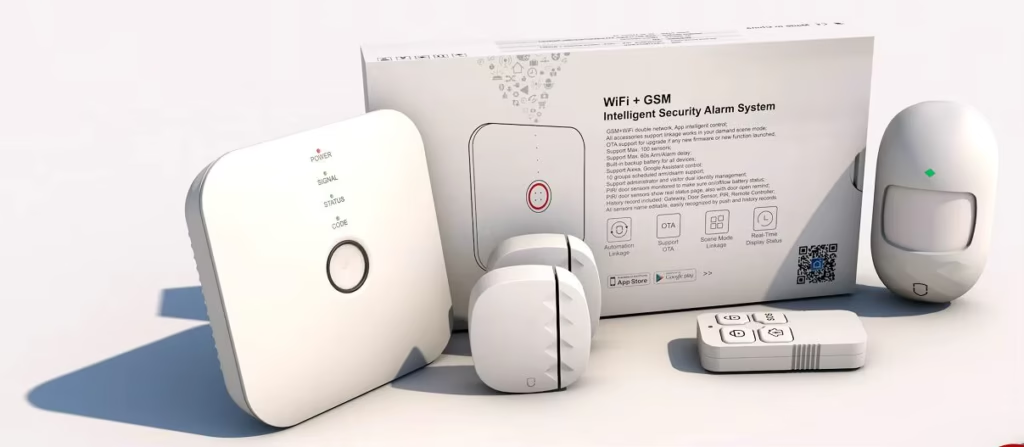
Locate the small, recessed pinhole on your gadget, commonly found near the power input on items like the Zemismart smart plug or Gosund power strip.
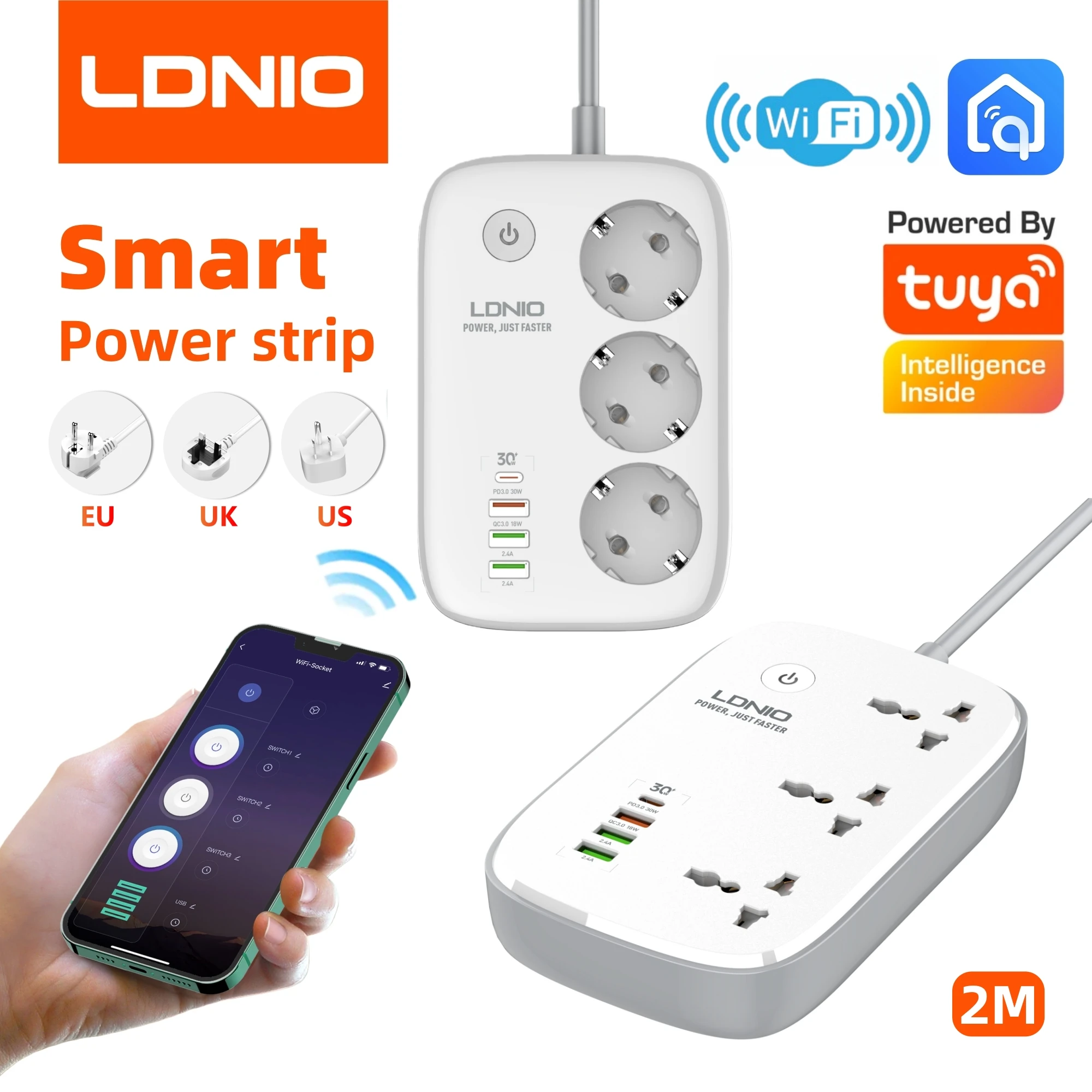
Insert a paperclip or SIM ejector tool and apply firm, continuous pressure for a full five seconds until the LED indicator flashes rapidly or changes color, signaling the factory default restoration is complete.
Immediately open your smartphone‘s Wi-Fi settings and connect to the new, open network broadcast by the appliance, typically named “SmartLife” or similar.
Launch the companion application (Smart Life or Tuya) and follow the in-app prompts to add the hardware anew, entering your home wi-fi credentials for the final configuration.
If the LED fails to blink after holding the button, power cycle the unit by unplugging it for 30 seconds, then retry the press-and-hold manual procedure.
For troubleshooting stubborn cases like a Meross light bulb, repeat the five-second hold cycle three times, ensuring power is stable throughout the process.
Preparing Your Device and Smartphone for the Process
First, ensure your gadget is powered on and within arm’s reach. For mains-powered products like the Gosund Smart Plug, plug it directly into a wall outlet. For battery-operated items like a MoesGo Thermostatic Radiator Valve from AliExpress, install fresh batteries.
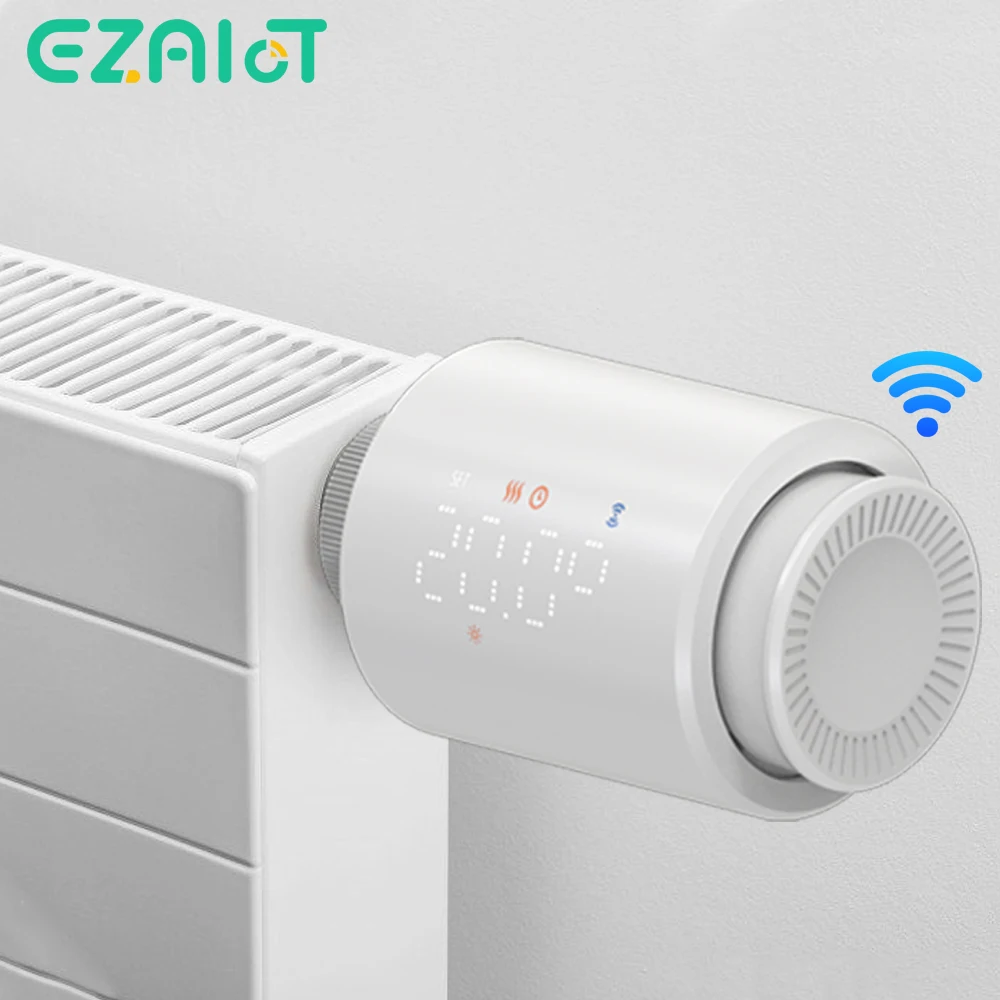
Critical smartphone configuration comes next:
- Enable Bluetooth and Location Services/GPS in your phone’s settings; the Tuya or Smart Life application requires this for discovery.
- Connect your mobile to the 2.4 GHz Wi-Fi band you intend to use for the appliance. Dual-band networks often cause pairing failures.
- Force close and reopen your smart home app to clear any cached data that could interfere with the setup.
Gather your home network credentials–the exact SSID and password. Having this information ready prevents mid-process delays and misconfiguration.
Finally, identify the physical control on your unit. It may be a small pinhole, a recessed tactile switch, or a clearly marked button. Use a paperclip or SIM ejector tool for pinhole mechanisms. This preparation is the foundation for smooth troubleshooting and avoids common network integration pitfalls.
Question-Answer:
My Tuya smart plug isn’t connecting to the app anymore. How do I get it back into pairing mode?
If your device has become unresponsive or won’t connect, a reset is the best solution. First, locate the physical reset button on the device itself. This is often a small, recessed pinhole. You’ll need a paperclip or similar thin object. With the device powered on, press and hold the reset button for about 5-10 seconds until you see the LED indicator flash rapidly or change its blinking pattern. This rapid flash signals the device has erased its old network settings and is now in pairing mode. You can then open your Tuya or Smart Life app and add it as a new device.
I’m moving to a new Wi-Fi network. Do I need to reset all my Tuya devices?
Yes, you will. Tuya devices store your home Wi-Fi credentials directly on the device. They cannot automatically detect or transfer to a new network. Each device must be individually reset using its physical button to clear the old network data. After resetting, you add each one to the app again, this time selecting your new Wi-Fi network during the setup process. It’s a good idea to do one device at a time to avoid confusion.
What’s the difference between restarting and resetting a Tuya device?
A restart is like rebooting a computer—you turn the power off and on, which can fix minor glitches without affecting your settings. A reset is much more complete. It wipes the device’s memory, removing your Wi-Fi details, app connections, and any custom configurations. After a reset, the device acts like it’s brand new and must be set up from scratch in your smart home app. Use a restart for temporary issues; use a reset for persistent connection problems or when changing networks.
I held the reset button, but the light on my bulb just turned off and nothing else happens. What did I do wrong?
You likely held the button for too long. Many Tuya smart bulbs have two modes: a quick reset (for network settings) and a full factory reset. Holding the button for 5-10 seconds typically triggers the network reset, indicated by a rapid flashing. Holding it for longer, often 10-15 seconds or more, can trigger a deeper factory reset where the light may shut off and become completely unresponsive for a moment before turning back on with a slow blink. Check your device’s manual for exact timing. If it’s in a deep factory state, just proceed to add it in your app—it’s ready for pairing.