



Being able to control your Tuya smart home from anywhere means true freedom and peace of mind. Whether you’re at work, on vacation, or just away from home, remote access lets you manage lights, cameras, sensors, and appliances in real time with a few taps on your phone. It’s not just about convenience—it’s about security, energy savings, and having full control of your smart ecosystem no matter where you are.
Table Of Content
- Accessing your Tuya ecosystem off-site
- Why your Tuya devices might not respond away from home
- Setting up a stable home Wi-Fi network for remote access
- Checking device and app permissions for outside connection
- Remote management of Tuya smart devices
- Using the Tuya Smart or Smart Life app from a different location
- Creating automations that work when you are not present
- Question-Answer
- My Tuya devices only work at home on Wi-Fi. What’s the simplest method to control them when I’m away?
- I don’t want my data going through a cloud server. Can I control Tuya devices remotely without the internet?
- Why does my Tuya device keep showing as “offline” in the app when I try to use it remotely?
- Is it possible to create automatic routines for Tuya devices that trigger based on my location?
- I use Google Home at home. Can I use my voice through my phone to control Tuya devices when I’m not home?
- My Tuya smart plug only works when I’m home on Wi-Fi. How do I make it work when I’m away?
- Use the Tuya Smart or Smart Life app, create an account, and pair devices to enable cloud-based remote control.
- Integrate a Tuya Zigbee hub for local mesh processing, faster automations, and reduced Wi-Fi dependence.
- Set cloud-based schedules, scenes, and geofences so automations run reliably when you're away.
- Keep router, hub, and device connections stable: static IPs, 2.4 GHz SSID, QoS, and firmware updates.
- Check app permissions, cloud access toggles, and voice assistant links; use VPN plus local hub for cloud-free remote access.
In this guide, we’ll show you how to securely access and manage your Tuya devices remotely, what tools and integrations make global control reliable, and how to avoid the most common setup mistakes. From cloud access and mobile apps to automation platforms like Make and n8n, you’ll learn how to build a smart home that stays connected and responsive wherever life takes you.

To command your smart plugs, lights, and sensors from afar, the primary tool is the official Tuya Smart or Smart Life application on your smartphone. Download it, create an account, and pair your gadgets–like a Merkury Innovations Wi-Fi Plug from Amazon or a LSC Smart Ceiling Light from AliExpress–by following the in-app instructions. This instantly links them to the cloud, enabling basic remote functions as long as both your phone and the device have active internet connections.
For more robust and responsive management, integrating a central hub, such as the Tuya Zigbee 3.0 Gateway, is crucial. This hardware creates a local mesh network for devices using protocols like Zigbee, reducing reliance on Wi-Fi and allowing for complex automation. You can then craft rules where a door sensor from AliExpress triggers a smart bulb to turn on, all processed locally for near-instant execution, even if your broadband is temporarily down.

Maximize efficiency by leveraging the app‘s schedule and scene features. Set your Gosund Smart Plug to power a coffee maker every weekday at 7 AM or create a “Goodnight” scene that locks all routines into a single tap. These configurations are stored and executed via the cloud, so your automation runs precisely whether you’re home or traveling, giving you consistent, hands-free oversight of your environment.
Accessing your Tuya ecosystem off-site
Ensure your primary gateway, like a hub from brands such as MoesHouse or Zemismart, maintains a constant connection to your home internet router.
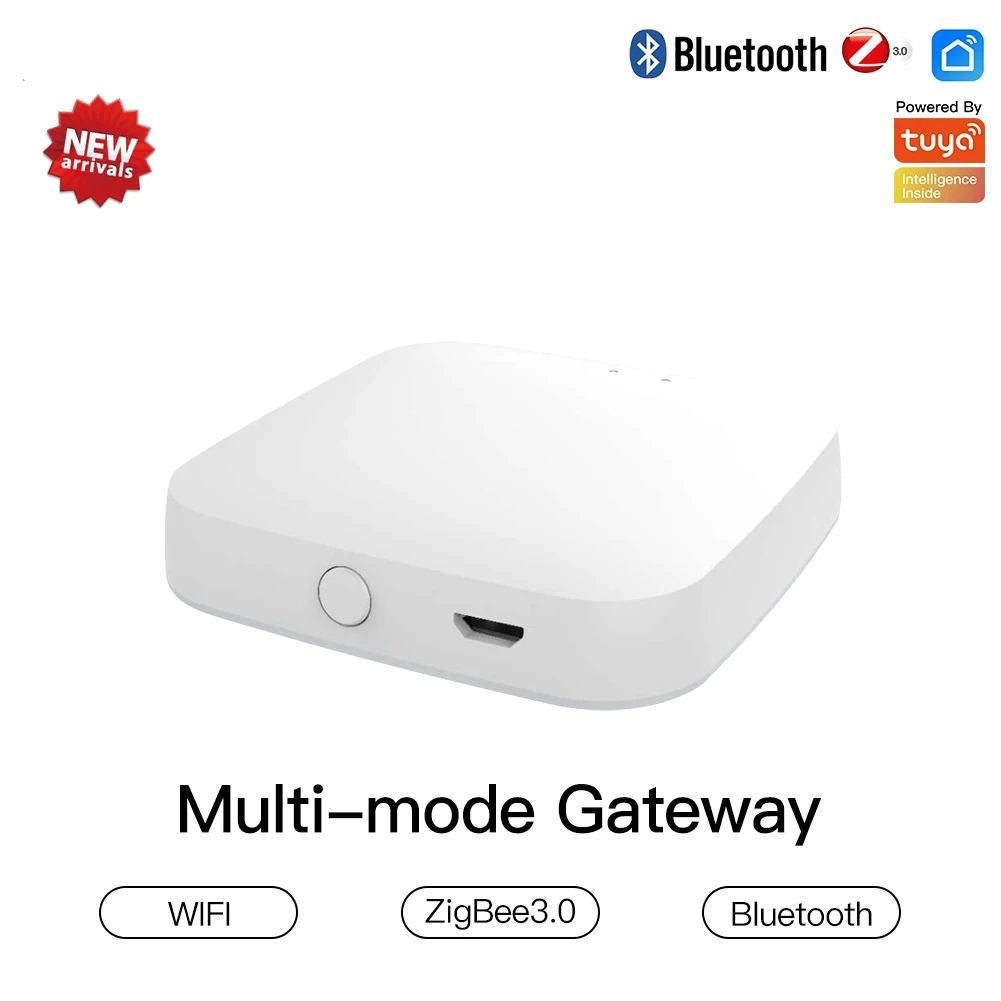
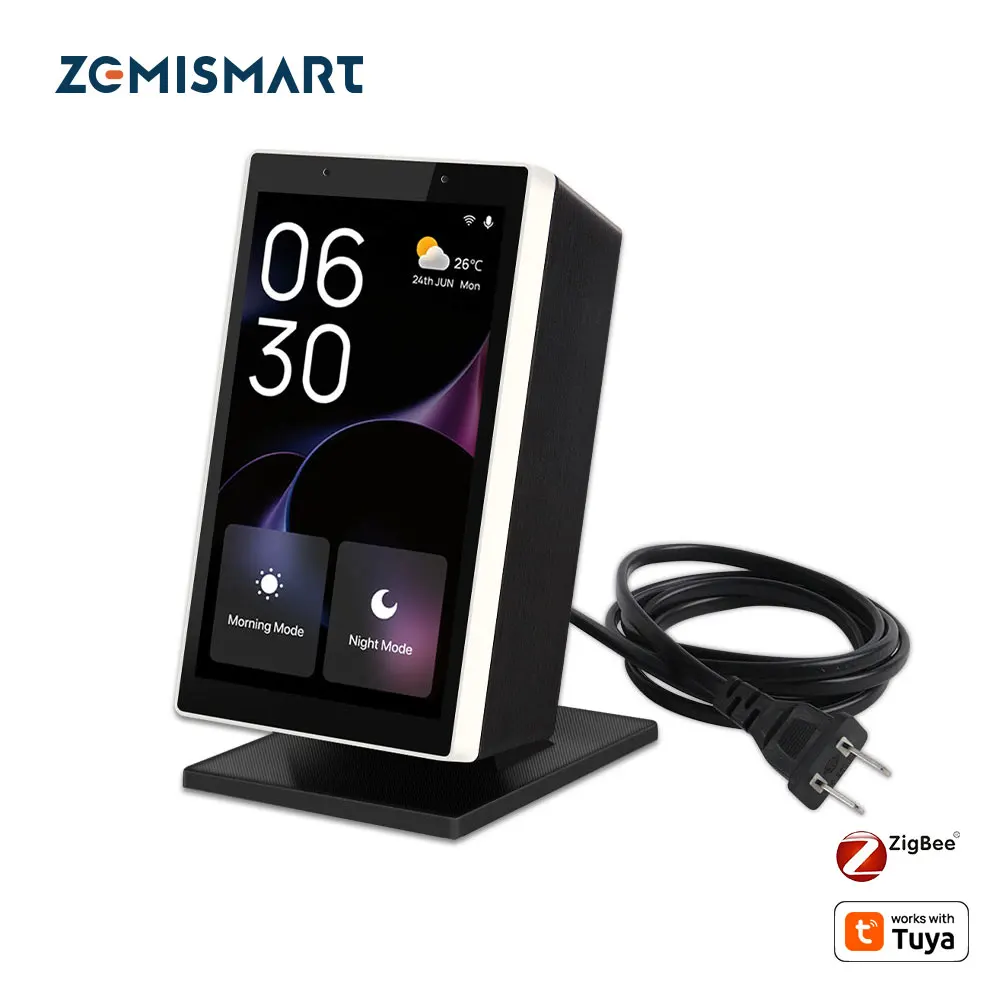
Install the official app on your smartphone and log into your account; this single login credential is your key to all connected products, from Gosund smart plugs to LSC Smart ceiling lights.
Create location-based automation rules within the application, such as turning on Geekcreit Wi-Fi sockets when your phone leaves a defined geographic area.

Set a precise schedule for appliances like the BSEED thermostat to activate before you return home, ensuring comfort without manual intervention.
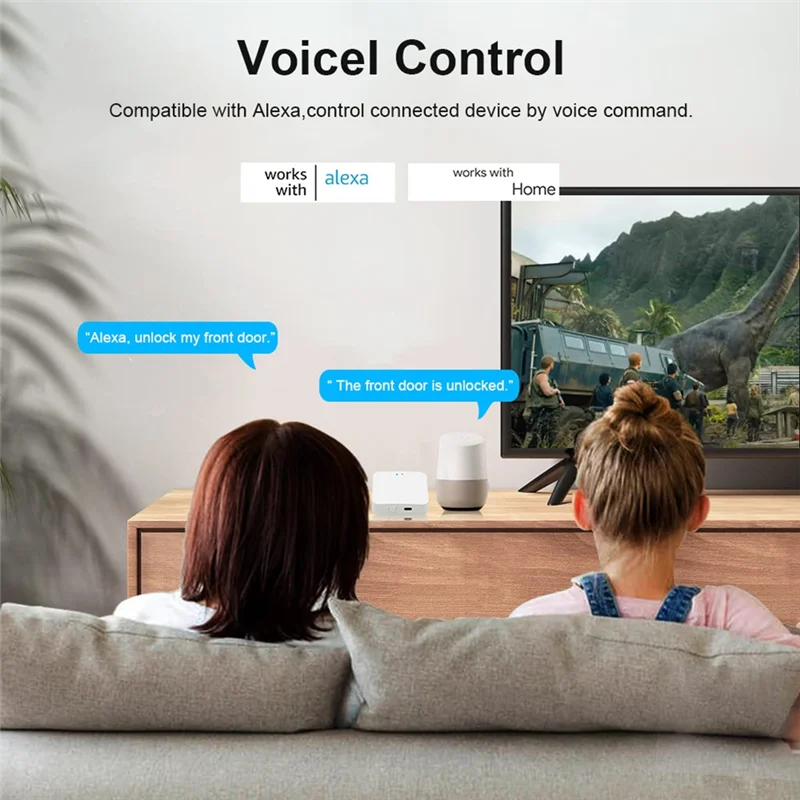
Integrate with a voice assistant like Alexa or Google Assistant; you can then command your LUMIMAN smart bulbs by speaking to a remote speaker, even from another city.
Verify that each gadget in your network is registered to the same cloud account within the platform’s ecosystem to prevent access errors.
Why your Tuya devices might not respond away from home
First, verify your smartphone has an active internet connection; your gear requires a live data link to the cloud server to execute commands.
A failed automation or schedule often stems from the primary hub, like the Smart Life Gateway, losing power or its Wi-Fi link, rendering connected Zigbee sensors or plugs unresponsive.
Check if the specific gadget, such as a Gosund smart plug from Amazon or a LSC WiFi bulb from AliExpress, is listed as “Offline” within your management app; this indicates a local network dropout.
Incorrect sharing settings can block access; ensure remote control permissions are enabled if you’re using a family member’s shared ecosystem.
Relying solely on a voice assistant routine without the manufacturer’s cloud enabled for that scene will cause it to fail when you’re out.
Persistent issues may signal an outdated firmware version on the accessory or a temporary outage of the platform’s cloud service, which halts all remote operations.
Setting up a stable home Wi-Fi network for remote access
Place your router centrally, away from appliances like microwaves, and consider a mesh system like the TP-Link Deco X20 from Amazon for large or multi-story homes to eliminate dead zones.
Dedicate a separate 2.4 GHz SSID for your gadgets; many smart plugs and bulbs, such as the Gosund Mini Smart Plug from AliExpress, require this band and struggle with congested 5 GHz networks.
Assign static IP addresses to critical automation hubs, like a Smart Life-compatible gateway, within your router’s settings to prevent connection drops.
Upgrade your internet plan if upload speeds are below 5 Mbps, as transmitting camera feeds and sensor data to the cloud for your smartphone app demands sufficient bandwidth.
Use Quality of Service (QoS) rules to prioritize traffic from your smart home hub and security devices over general downloads, ensuring instant response to voice commands or scheduled routines.
Reboot your router monthly and keep its firmware updated to maintain stability for all cloud-dependent automations managed through your mobile app.
Checking device and app permissions for outside connection
First, verify that your smart plug or light bulb is explicitly designed for cloud connectivity; some budget models from AliExpress only work via Bluetooth. Within the companion application, navigate to the device’s settings and ensure the “Remote Control” or “Cloud Access” toggle is enabled.
Grant the mobile application unrestricted background data usage permissions on your smartphone. On iOS, allow “Background App Refresh,” and on Android, disable battery optimization for the app to prevent the OS from severing its persistent link to the cloud servers.
Confirm that your central hub, like the Tuya Zigbee Gateway, has an active internet connection. Its status light should be solid, not blinking. Without this bridge online, scene automations and scheduled routines for sensors and switches will not execute when you are away.
Check for mandatory app updates, as outdated software can lose authorization with the cloud platform. Furthermore, review your linked voice assistant accounts (Amazon Alexa, Google Assistant) in the app’s “Voice” section and re-link them if the connection has expired, which often halts voice commands from outside the local network.
Finally, inspect the automation or schedule you created. A rule set to trigger “When Device Changes” locally will fail; for off-site execution, the trigger must be a cloud-based event like a specific time, geofence, or another cloud-connected gadget’s status.
Remote management of Tuya smart devices
Establish a robust automation directly within the Tuya or Smart Life application to ensure your gadgets operate without manual intervention. For instance, link a Gosund smart plug purchased from Amazon to a humidity sensor; program it to activate a dehumidifier when levels exceed 60%, creating a fully automated climate management system.
Leverage the cloud-based scheduling feature to mimic presence and optimize energy use. Set your Meross Wi-Fi bulbs from AliExpress to turn on at sunset and off at 11 PM daily, providing security and convenience regardless of your physical location.
Integrate voice commands via Alexa or Google Assistant for hands-free oversight. A simple command to your smartphone, like “Alexa, turn on the living room lights,” executes via the internet, even if you’re miles from home, demonstrating seamless cloud integration.
| Device Example (Source) | Core Management Action | Key Benefit |
|---|---|---|
| Teckin Smart Bulb (Amazon) | Set a sunrise simulation schedule | Wakes you naturally without local access |
| LSC Smart Ceiling Light (AliExpress) | Create an “Away” automation scene | Enhances home security by randomizing operation |
| Moe’s Smart Thermostat (Amazon) | Adjust temperature via voice command | Ensures comfort upon arrival through cloud control |
Regularly audit and update your automation rules in the app to align with changing routines. The cloud infrastructure stores these complex “if-then” scenarios, executing them reliably as long as the product maintains an active internet link.
Using the Tuya Smart or Smart Life app from a different location
Ensure your home internet router remains powered on; your gadgets connect to this network, which then communicates with the vendor’s cloud service.
For a robust setup, integrate a central hub like the Tuya Zigbee Gateway from Amazon. This creates a local mesh network for sensors and switches, with the hub maintaining the single, crucial link to your Wi-Fi, enhancing overall reliability when you’re out.
- Verify cloud-based automation: Schedules you create for, say, an AliExpress smart plug run on the manufacturer’s servers, not your phone, so they execute whether your smartphone is on the local network or not.
- Leverage voice assistants off-site: Link your ecosystem to Google Home or Alexa. You can then command a compatible bulb by talking to your assistant’s app on a mobile device from anywhere, as the instruction routes through the respective voice service’s cloud to your products’ cloud.
- Check the status icon: Inside the application, a small online indicator (often green) on the thumbnail of your smart temperature monitor confirms it is connected to the internet and reachable.
If actions from a distance fail, immediately check if your home broadband is active–a simple router reboot often resolves the issue. Avoid using VPNs on your mobile, as they can geolocate your phone virtually elsewhere and disrupt the connection to your home automation cloud.
Creating automations that work when you are not present
Leverage cloud-based schedules in your Tuya application, as these execute regardless of your phone’s location, unlike Bluetooth-based triggers.
For robust away-from-home logic, implement a smart hub like the Tuya Zigbee Hub. It processes automation between sensors and actuators locally, ensuring actions like turning on a smart plug when a contact sensor opens occur without external web access.
Construct automations using these reliable triggers:
- Specific time or sunrise/sunset (geolocation-based).
- Device status, like a leak sensor from AliExpress activating a shut-off valve.
- Virtual “Leave Home” scene button pressed in the app before departure.
Integrate voice assistant routines (Amazon Alexa/Google Home) as a backup layer; a command like “Alexa, I’m leaving” can activate your away scene via the cloud.
Critical checklist for reliability:
- Ensure all automation participants are connected to the home Wi-Fi and show online status.
- Verify the smart hub (if used) has a constant power supply and stable network link.
- Test each sequence by simulating the trigger while your smartphone uses mobile data, not the local network.
Question-Answer:
My Tuya devices only work at home on Wi-Fi. What’s the simplest method to control them when I’m away?
The most straightforward method is to use the official Tuya Smart app or Smart Life app. Both apps enable remote control automatically once your device is set up. For this to work, the device must be connected to your home Wi-Fi, and your phone needs internet access. When you’re out, the app sends your command to Tuya’s cloud service, which then relays it to the device at your home. No special configuration is typically needed; it’s the default functionality. Just ensure your device is online in the app before you leave.
I don’t want my data going through a cloud server. Can I control Tuya devices remotely without the internet?
Yes, you can achieve local-only remote control by using a local hub and a virtual private network (VPN). First, you need a local hub like a Home Assistant server with the local Tuya integration. This allows your phone to talk to devices directly on your home network. Then, to access your home network from outside, you set up a VPN server (like WireGuard or Tailscale) on your home router or a server. When you’re away, you connect your phone to this VPN. Your phone will then behave as if it’s on your home Wi-Fi, letting you control devices through the local hub’s app without any data leaving your network.
Why does my Tuya device keep showing as “offline” in the app when I try to use it remotely?
An “offline” status during remote access usually points to a problem with the device’s connection at home. The cloud can’t reach it. Check these points: First, verify your home internet is working. A power outage or router restart can disrupt the connection. Second, ensure the Wi-Fi signal where the device is placed is strong enough. Walls or distance can weaken it. Third, cheap smart plugs can sometimes lose connection if their Wi-Fi module enters a low-power state. Try power-cycling the device by unplugging it and plugging it back in. Finally, check if there was a recent change to your home Wi-Fi password or network name; the device will need to be reconnected if so.
Is it possible to create automatic routines for Tuya devices that trigger based on my location?
Both the Tuya Smart and Smart Life apps include a basic “Geofence” feature for location-based automation. You can set it so that when all family members’ phones leave a defined area around your home, the app can automatically turn off selected devices like lights or plugs. Conversely, it can turn devices on when the first person returns. This feature uses your phone’s GPS. For more complex rules, like triggering different scenes based on who returns or the time of day, you will need a third-party platform. Apple HomeKit (via a bridge), Google Home, or platforms like IFTTT offer more advanced options for building location-sensitive automations with your Tuya devices.
I use Google Home at home. Can I use my voice through my phone to control Tuya devices when I’m not home?
Voice control from outside your home depends on the assistant you use. With Google Home, if you ask your phone’s Google Assistant to control a device, it will typically attempt to do so remotely via the cloud. For this to work, your Tuya devices must first be fully linked to the Google Home app. The devices and your Google account communicate through their respective cloud services. So, saying “Hey Google, turn off the living room light” to your phone while away should work. Note that routines set up in Google Home may also run remotely. However, direct control via the Google Home app (tapping buttons) is more reliable for remote management than voice commands, which can sometimes fail if there’s a misinterpretation or connectivity delay.
My Tuya smart plug only works when I’m home on Wi-Fi. How do I make it work when I’m away?
You need to connect the device to the Tuya Smart app and ensure it’s linked to a cloud account, not just in local control mode. Here’s how: First, during setup in the Tuya Smart app, you must be logged into your account (like via email or phone). The device should complete its network setup, ending with a confirmation in the app. If it works only on Wi-Fi, check the device’s status in the app. A cloud-connected device will show online from any network. For remote control, do not use a “Local Network” or “Home Only” mode if your app has that setting. The main requirement is a stable internet connection for both your phone (on mobile data) and your home router. If the problem continues, try rebooting your router and the smart plug.