



Update Your Tuya Device Firmware to ensure your smart home devices run smoothly, securely, and at peak performance. Regular firmware updates fix bugs, improve stability, enhance compatibility with new features, and protect your devices from potential security risks. Whether you’re using smart plugs, switches, cameras, or sensors, keeping your Tuya firmware up to date helps maintain reliable connections, faster response times, and seamless integration with your smart home ecosystem.
Table Of Content
- Preparing for Your Tuya Firmware Upgrade
- Checking Your Device’s Current Firmware Version
- Ensuring a Stable Power Source and Internet Connection
- Identifying Your Device Model in the Tuya App
- Initiating the Update Process via the Tuya Smart App
- Navigating to the Device Settings Menu
- Locating the “Firmware Upgrade” or “Device Upgrade” Option
- Question-Answer
- My Tuya device isn’t connecting to the app. Could outdated firmware be the cause and how do I check?
- Is it safe to update firmware on my smart plugs and lights? What are the risks?
- The update process failed halfway through. Now my smart bulb is unresponsive. What can I do?
- Do I need to update firmware for every single smart device individually?
- How long does a typical Tuya firmware update take, and what should I see on the screen?
- My Tuya device is stuck on “update failed” every time I try. What are the most common reasons and how can I fix them?
- Keep Tuya firmware current to fix bugs, improve stability, add features, and patch security vulnerabilities.
- Ensure stable power and 2.4 GHz Wi-Fi signal within close range before and during OTA updates to avoid bricking devices.
- Troubleshoot stalled updates by restarting device and router, then re-adding the product; consult manufacturer release notes first.
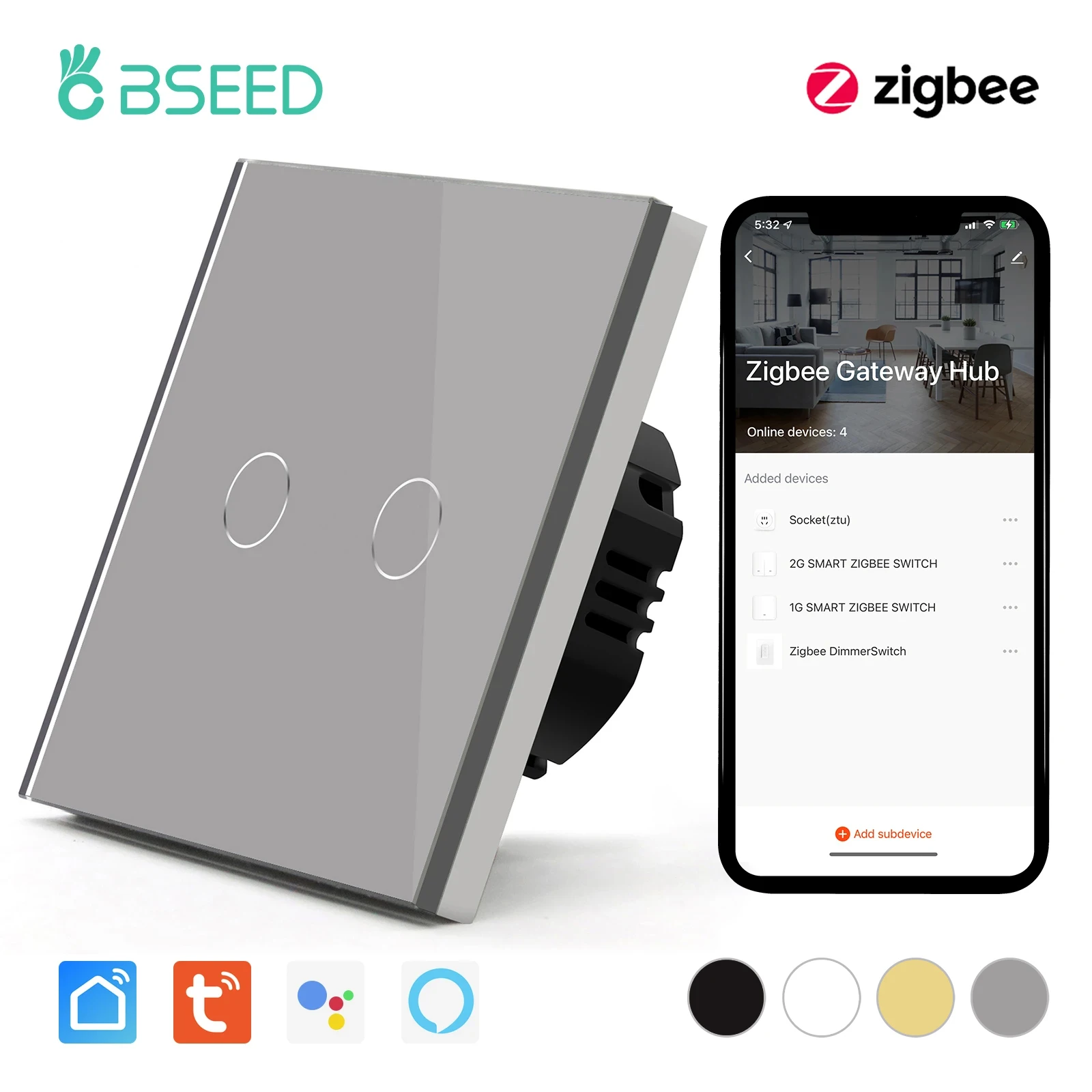

Begin by launching the SmartLife or Tuya app, navigating to the device’s settings, and checking for an available OTA package. This over-the-air process is the primary method for delivering enhancements, from improved Wi-Fi stability for a Gosund smart plug to new voice assistant integrations. Proactive version management is not optional; it directly impacts compatibility with your broader smart home and patches critical security vulnerabilities that could expose your network.
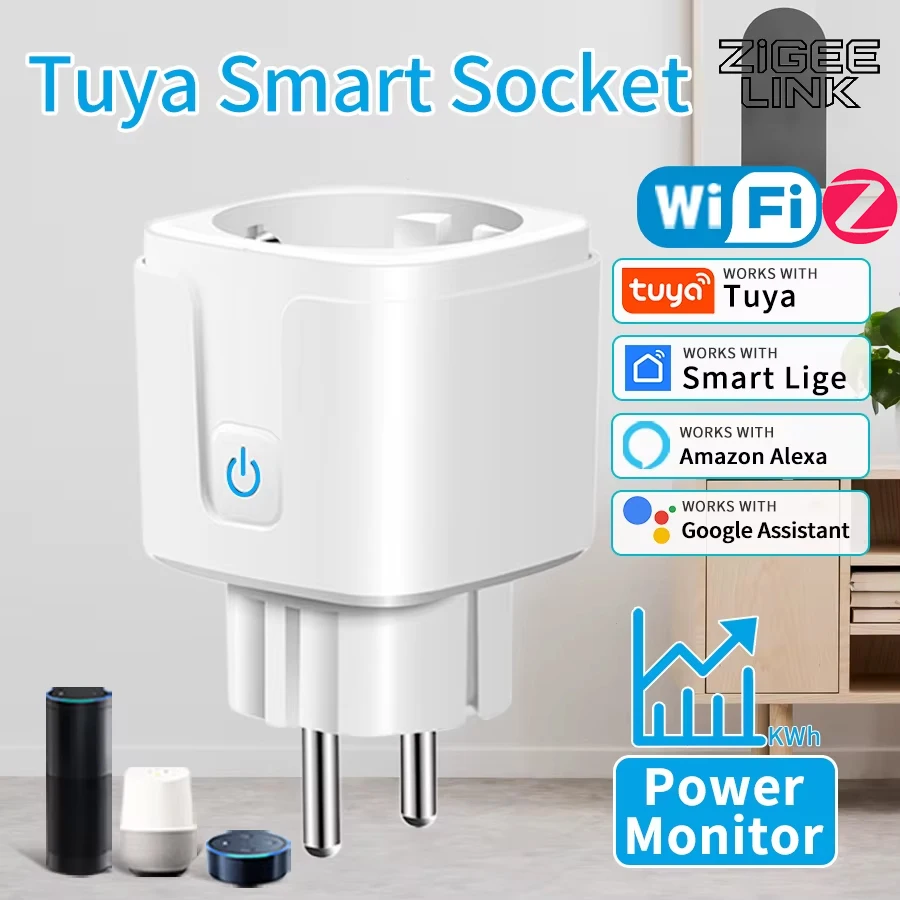
Before initiating the procedure, ensure your gadget remains powered and within range of your router. A failed upgrade on a device like a Zemismart curtain motor often stems from an unstable network connection. Consult the manufacturer’s notes for the specific version changelog–these details, often listed on AliExpress product pages, clarify whether the iteration addresses performance quirks or introduces new features for your particular model.
If the process stalls, a systematic troubleshooting sequence is essential: restart the device, reboot your router, and finally, re-add the product to the application. This resolves most common hiccups. Remember, consistently revised software is the cornerstone of a reliable and secure automated home, safeguarding investments in everything from inexpensive AliExpress bulbs to sophisticated security cameras.
Preparing for Your Tuya Firmware Upgrade
First, confirm the current software version of your gadget within the SmartLife or Tuya app by navigating to the device’s settings menu.
Ensure your phone is connected to the same 2.4 GHz Wi-Fi network as your appliances; dual-band networks often cause connection failures during the process.
Strengthen your network’s security posture by temporarily disabling VPNs or firewall rules that might block communication between the app and your devices, such as smart bulbs or thermostats.
Perform a power cycle on your appliance–like a LumiLed ceiling light–by unplugging it for 30 seconds to clear any temporary glitches that could interrupt the installation.

Read all provided instructions from the developer to understand if the upgrade requires the device to be in a specific mode, which is common for robot vacuum cleaners from brands like Lefant.
For proactive troubleshooting, have the device’s physical reset button accessible; a paperclip is often needed for hubs or cameras to restore connectivity if the installation fails.
Checking Your Device’s Current Firmware Version
Open the SmartLife or Tuya application and navigate to the specific gadget’s control panel, such as for a Moe’s Smart Plug or a LSC Wi-Fi LED Strip from AliExpress.
Tap the device settings icon (often three dots or a gear), then select “Device Information” or “About Device“. The listed “Firmware Version” or “Software Version” is your current build. Record this number; verifying it is critical for assessing compatibility with the latest OTA releases and identifying resolved security patches.
If the version details are absent, ensure your product is powered on and connected to your wi-fi network. For persistent issues, use the app’s troubleshooting menu or consult the manufacturer’s instructions–some models, like certain smart thermostats, display their version via a physical button sequence.
Ensuring a Stable Power Source and Internet Connection
Plug your gadget, like a Gosund smart plug or a LSC WiFi ceiling light module, directly into a wall outlet, not a power strip, to prevent voltage fluctuations that can corrupt the OTA process.

Confirm your Wi-Fi network uses the 2.4GHz band, as most Tuya-based products from brands like BlitzWolf and Sonoff are not compatible with 5GHz-only networks; dual-band routers must have both networks active with distinct names.
For the upgrade duration, position the device within 5-10 meters of your router, avoiding physical obstructions, to maintain a strong signal critical for downloading the new software version without interruption.
Use a secondary device, like a tablet, to run a continuous internet speed test during the procedure, ensuring network stability; a drop below 5 Mbps can cause the security patch download to fail.
If the process stalls in the SmartLife app, do not unplug the unit; first, restart your router and phone, then follow the specific troubleshooting instructions provided within the app’s help section for failed installations.
Always keep the device powered on and connected until the app confirms completion; a sudden power loss mid-update can brick the hardware, requiring a full replacement from the seller on AliExpress.
Identifying Your Device Model in the Tuya App
Open the Tuya or SmartLife application and navigate directly to the device’s control panel. Tap the settings icon (often three dots or a gear) in the top-right corner of the card for your specific gadget, like a “Moe’s Home Smart Plug” or a “LSC Smart WiFi LED Strip.”

Select “Device Information” or a similar menu entry. Here, you will find the exact model number, such as “BK7231N” or “XMSH07HM.” Record this alphanumeric code precisely; it is critical for verifying OTA compatibility and locating correct upgrade instructions.
Cross-reference this model with the manufacturer’s official support page on AliExpress. For instance, search for “Tesvor X500 Vacuum Model Number” to confirm the latest available software version. This step ensures your upgrade path is correct and maintains device security.
Note the current firmware version listed in the same menu. The model dictates hardware capabilities, while the version shows the installed software. A mismatch between model and new software can cause a failed update or Wi-Fi connectivity loss post-update.
Initiating the Update Process via the Tuya Smart App
Open the Tuya Smart or SmartLife application and navigate directly to the device’s control panel. Tap the three-dot menu or settings icon in the top-right corner to access the “Device Information” or “Firmware Upgrade” section. If an OTA package is available, a prominent notification or button will appear here; do not proceed if the app shows “Latest Version.”
For a Gosund smart plug (CP1) or a LSC Smart Connect ceiling light module, the interface will display the current and target build numbers. Always verify this version compatibility before confirming. Initiate the procedure only when your gadget is on a steady Wi-Fi network and drawing constant power–interruptions can brick the unit.
| Action | Expected Outcome & Notes |
|---|---|
| Tap “Upgrade Now” | A progress bar (0-100%) will show; the module may reboot silently. |
| Wait for Automatic Reconnection | Do not close the app or use the gadget for 2-3 minutes post-completion. |
| Confirm Successful Refresh | Check the device info page again for the new software iteration. |
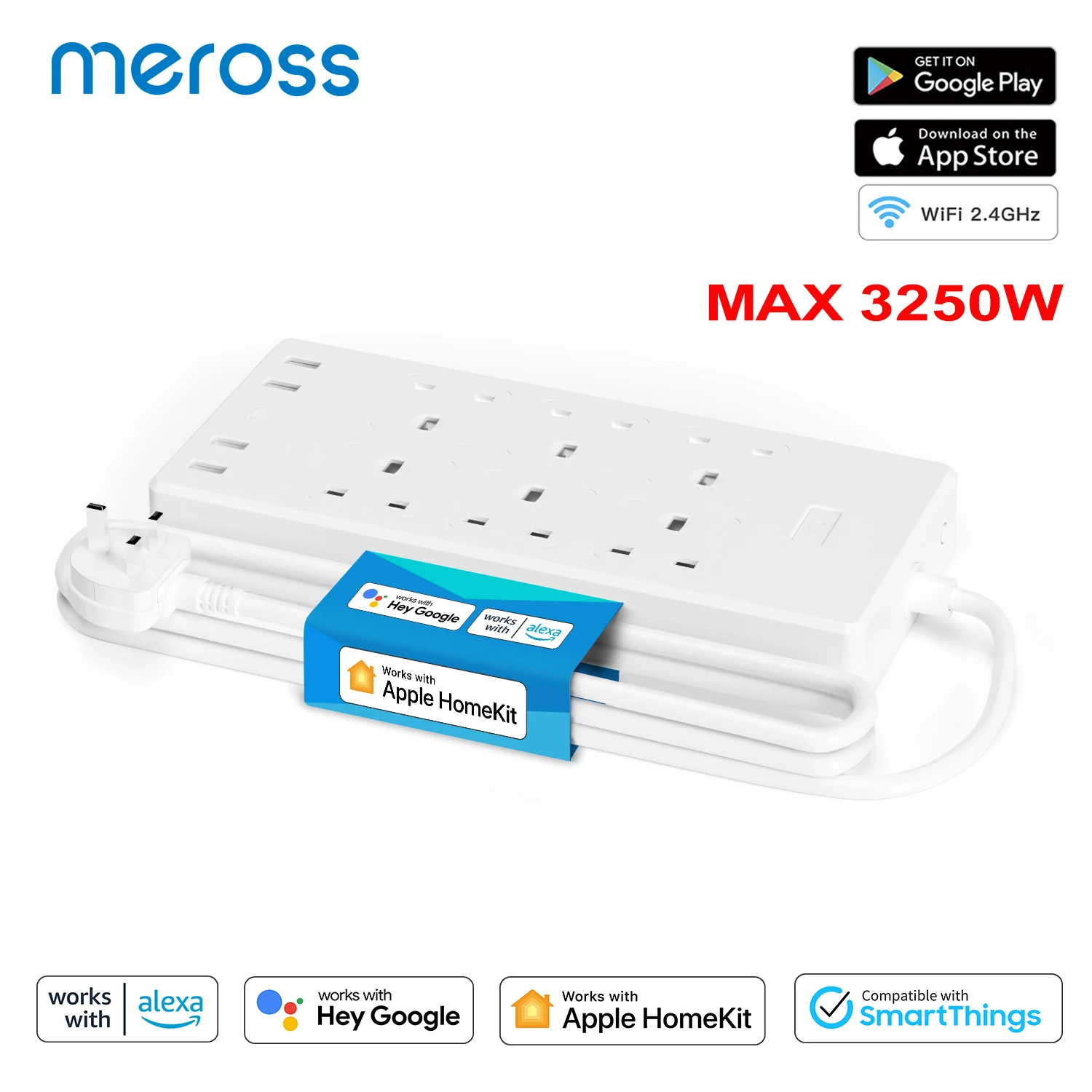
Critical troubleshooting steps: if the progress bar stalls, force-close and reopen the utility. For persistent failures, power-cycle the apparatus (e.g., a Meross HomeKit 2 In 1 WiFi Dual Smart Plug) and ensure your phone is on the same 2.4GHz network. These enhancements often include vital security patches and performance fixes for platforms like Tuya and SmartLife, making completion essential.

Navigating to the Device Settings Menu
Open the Tuya Smart or SmartLife application and directly select the specific gadget tile, such as your “Moe’s Home Smart Plug” or “LSC WiFi LED Strip Controller.
Locate and tap the ellipsis (…) or the gear icon, typically found in the tile’s upper-right corner; this is the universal gateway to advanced controls and the OTA management hub.
Scroll within the settings panel to find an entry labeled “Device Information”, “Firmware Version”, or “Check for Upgrades”. This section displays the current software version and critical compatibility data for your model.
If the menu structure differs, consult the “Help” or “Troubleshooting” area within the app for model-specific navigation instructions, as interfaces for a Gosund smart switch and a Zemismart thermostat may vary slightly.
Ensure your phone remains connected to the same 2.4GHz Wi-Fi network as the appliance to prevent the settings menu from failing to load or display the device’s status correctly.
Locating the “Firmware Upgrade” or “Device Upgrade” Option
Open your Tuya or SmartLife application and navigate directly to the control panel for your specific appliance, such as a Merkury Innovations Wi-Fi Plug or a Gosund Smart Bulb from AliExpress.
The path to the upgrade setting is typically found within the device’s detailed settings menu, not on the main dashboard. Follow these precise instructions:
- On your device’s control screen, tap the three-dot (…) or gear icon, usually located in the top-right corner.
- Scroll down the list that appears. Look for labels like “Device Information”, “Advanced Settings”, or “About Device”.
- Select this menu. The “Firmware Upgrade” or “Device Upgrade” button is commonly positioned here, often near the version number.
If the option is not immediately visible, it may be nested under a “Security” sub-menu for certain products like smart cameras or door locks. For items such as the Teckin Wi-Fi Power Strip, the function might be labeled “Check for Updates” and require a manual tap to search for new files.
Remember, a stable wi-fi connection is critical for this menu to populate correctly and display the latest available software version for your gadget.
Question-Answer:
My Tuya device isn’t connecting to the app. Could outdated firmware be the cause and how do I check?
Outdated firmware can sometimes cause connectivity problems. To check your firmware version, open the Tuya Smart app or Smart Life app. Go to the device’s control panel, usually by tapping on the device icon. Look for a settings or gear icon, then find an option like “Device Information” or “Firmware Update.” The current version will be listed there. If an update is available, the app will typically show a prompt or a red dot on the settings menu. Before updating, ensure your phone is connected to a stable Wi-Fi network and the smart device is powered on.
Is it safe to update firmware on my smart plugs and lights? What are the risks?
Updating firmware is generally safe and recommended, as it often brings security patches and performance improvements. The main risk is a power interruption during the update, which could corrupt the firmware and make the device unusable. To minimize this, avoid turning off the device or your router while the update is in progress. Do not close the app. Updates from the official Tuya app are verified and secure. If you’re using a third-party app with Tuya integration, stick to updates provided within that app’s official interface.
The update process failed halfway through. Now my smart bulb is unresponsive. What can I do?
A failed update can leave a device in a non-working state. First, try a manual reset. For most Tuya devices, this involves turning the power off and on five times, or holding a physical button for 5-10 seconds until the light flashes rapidly. This often forces the device into pairing mode and can clear the corrupted update. After resetting, add the device to the app again as if it were new. Check if the firmware update option reappears. If the device remains completely dead, contact the manufacturer’s support, as the hardware may need servicing.
Do I need to update firmware for every single smart device individually?
Yes, firmware updates are applied to each device separately. Even if you have multiple identical bulbs from the same brand, each one has its own firmware version and must be updated on its own. The app will show a list of your devices with available updates. You will need to start the process for each one and wait for it to complete before moving to the next. Group updates for multiple devices at once are not typically supported in consumer Tuya applications due to the need for a stable connection with each individual device during the file transfer.
How long does a typical Tuya firmware update take, and what should I see on the screen?
A standard update usually takes between one to three minutes. During this time, you will see a progress bar or percentage indicator in the app. The device itself may exhibit signs of activity, such as its LED light flashing slowly or changing color. It is critical not to interact with the device or exit the app until you see a confirmation message like “Update Successful.” The device will often restart automatically once the update is finished. If the progress bar stops moving for more than five minutes, the update may have stalled, and you should follow the failure recovery steps.
My Tuya device is stuck on “update failed” every time I try. What are the most common reasons and how can I fix them?
A failed update is usually due to connectivity or power issues. First, ensure your device is within strong Wi-Fi range and the network is stable. A weak signal is the most common culprit. Second, do not operate the device during the update. For smart plugs or lights, make sure they stay powered on; a power interruption will cause a failure. Third, restart both your router and the smart device, then attempt the update again. If the problem persists, check if the device is listed as compatible with the latest firmware in the official Tuya release notes. Using an unofficial or modified version of the Tuya/Smart Life app can also cause failures, so download the app only from official stores.